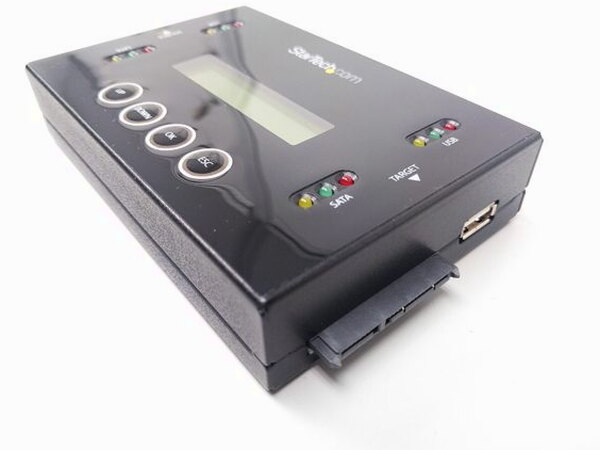
REVIEW – StarTech’s USB/SATA Drive Duplicator and Eraser is built for people who handle storage media all the time, especially IT pros who need to copy or wipe drives without tying up a workstation. It is not cheap at the $796.99 suggested retail price, and the included guide is thin, but the payoff is a dedicated box that can take over jobs I would otherwise do from a full computer.
This is a single-purpose tool, but it is a flexible one. It can duplicate drives, erase drives, compare copy results, and work across SATA and USB flash storage. The combination makes it useful for prepping machines, retiring flash drives, making test copies, and clearing media before reuse.
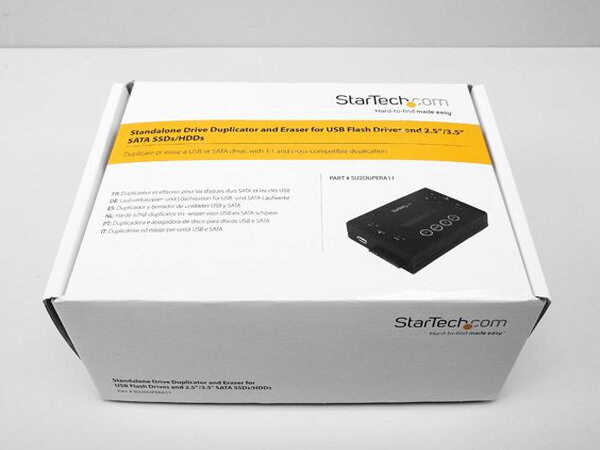
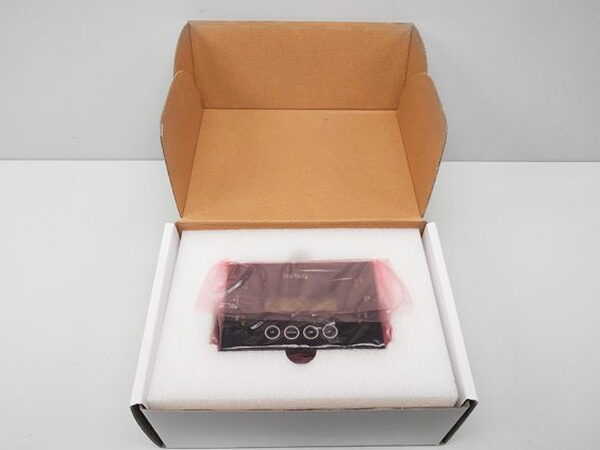
In the box
- 1 x SATA/USB duplicator and eraser
- 1 x 12v DC power supply
- 4 x universal power adapters for NA/JP, UK, EU, and ANZ
- 2 x drive connector cables
- 2 x drive pads
- 1 x quick-start guide
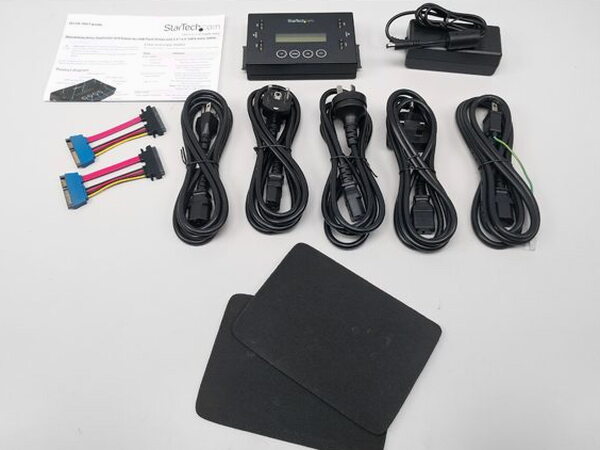
The power accessories are more generous than I expected. There are five international power cables in the package, including two for U.S. use: one with a grounded plug and another with a wired ground.
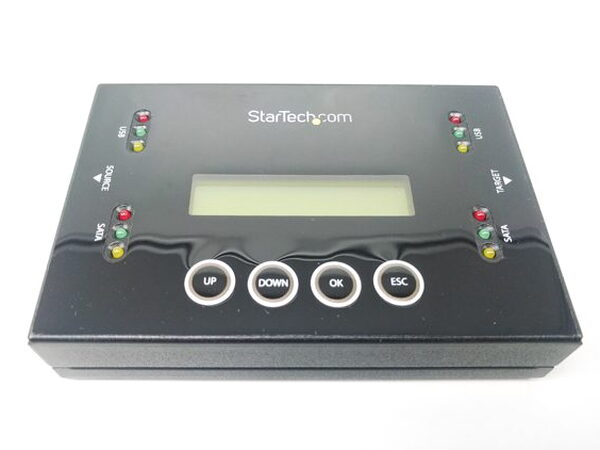
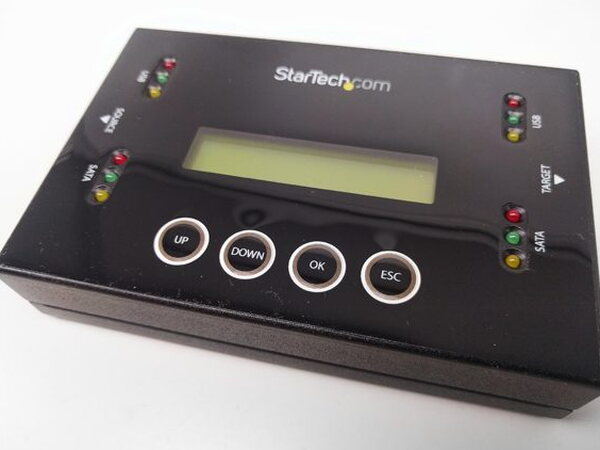
The case design is all about utility. The glossy black top holds the LCD, four membrane buttons, and 12 indicator lights, while textured hard plastic wraps around the sides.
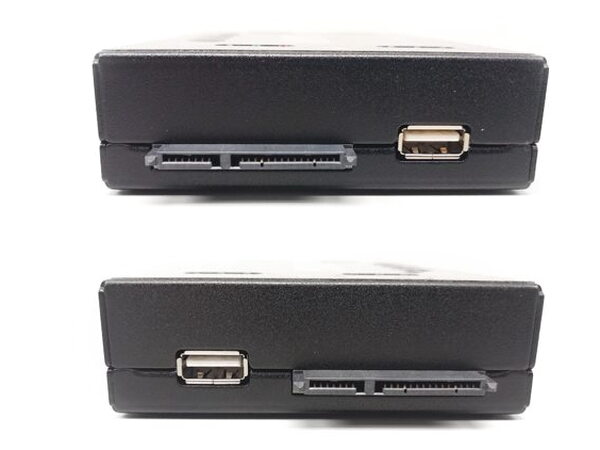
Each side accepts standard 22-pin SATA drives and USB flash drives. That means it can handle 2.5-inch and 3.5-inch SATA SSDs or HDDs, plus USB flash media. The upper edge has the power connection and the on/off rocker switch.
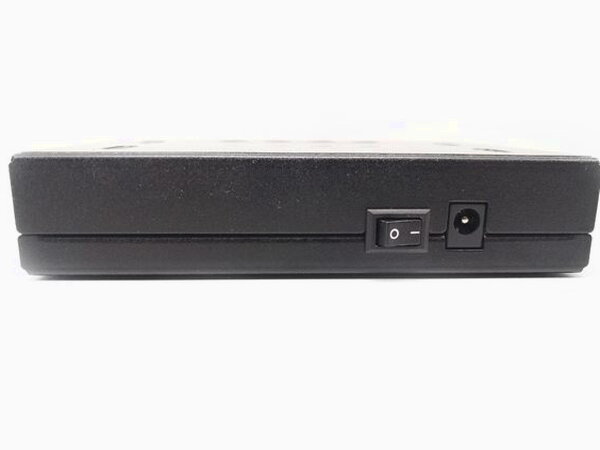
I am not a fan of that rocker switch location. It feels too easy to bump off during an important erase or copy operation, and that would be a bad moment to lose power.
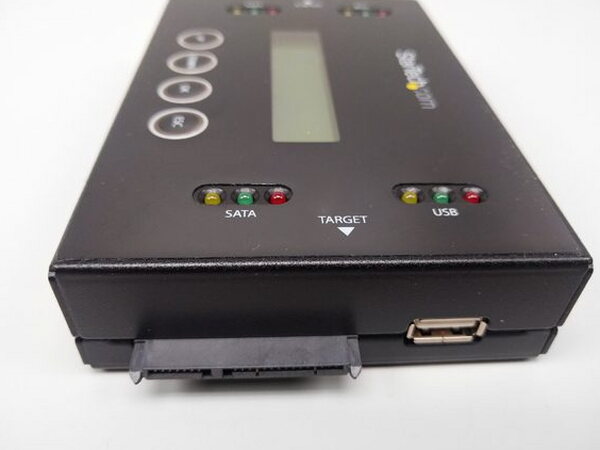
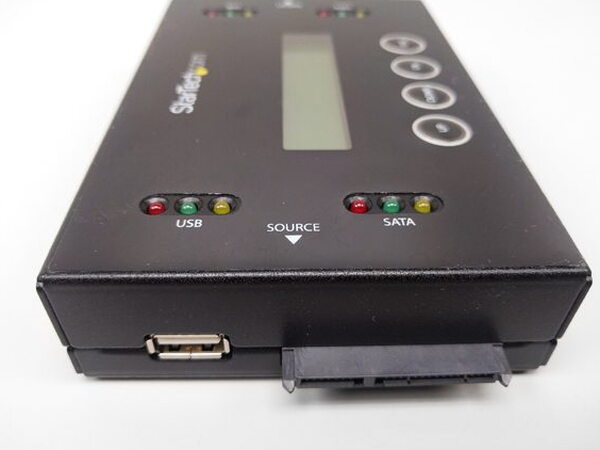
The Source and Target labels are easy to read, which matters on a product that can erase data. Each connection area has yellow, green, and red LEDs. Yellow means a drive is connected properly, green shows activity, and red signals an error.
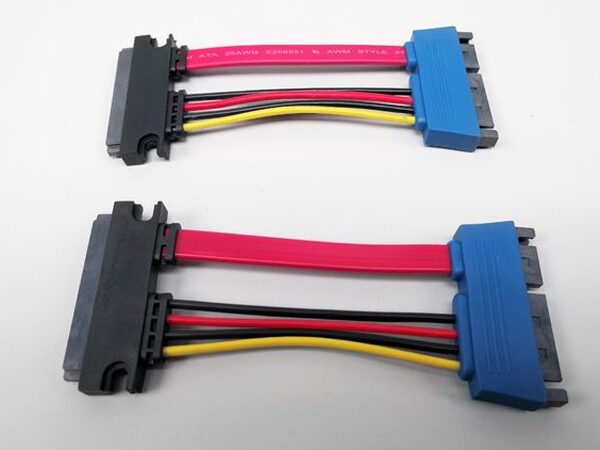
The quick-start guide says to use the included SATA drive connector cables when attaching SATA drives. That is meant to avoid damaging the SATA connectors on the duplicator or on the drives themselves.

The same guide recommends the mousepad-like drive pads for SATA work. Bare drives slide around easily on a desk, so the pads are a sensible inclusion.
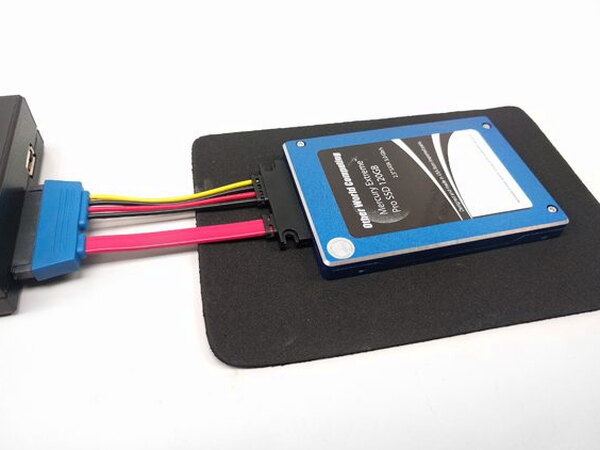
My SATA test setup used two matching 120gb SSDs. The connector cables make the setup wider than the device itself, but the arrangement is straightforward.
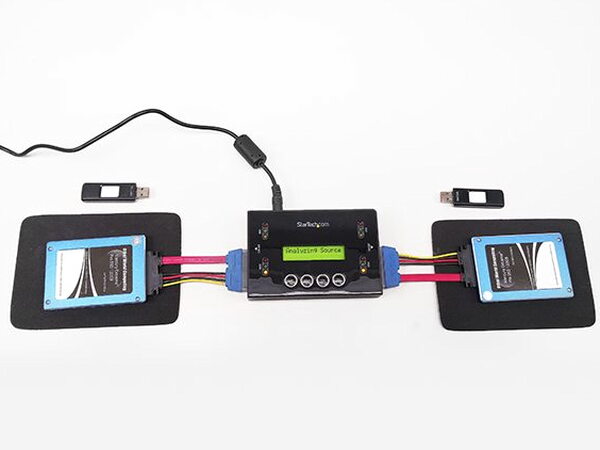
For USB testing, I used two identical 2gb flash drives. With SATA drives and power attached, the device takes up a good amount of desk space and becomes a little awkward, but that is reasonable for a box that replaces a computer for these tasks.
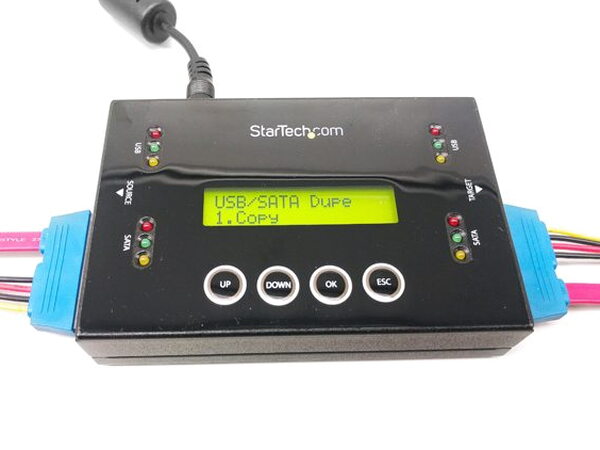
Everything runs through the LCD menu and the four buttons. The menu system takes a short time to learn, but launching common jobs such as copying and erasing is not difficult once you know where the choices are.
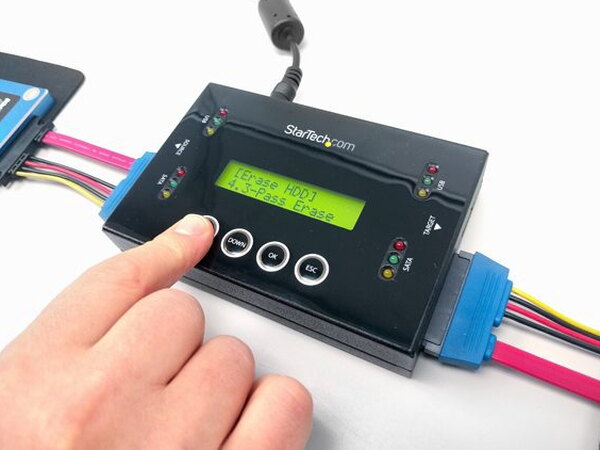
Erase options
The erase side is one of the best reasons to own this device. I use it every day to wipe USB flash drives that are leaving rotation and to clear SATA drives before they go into new systems.
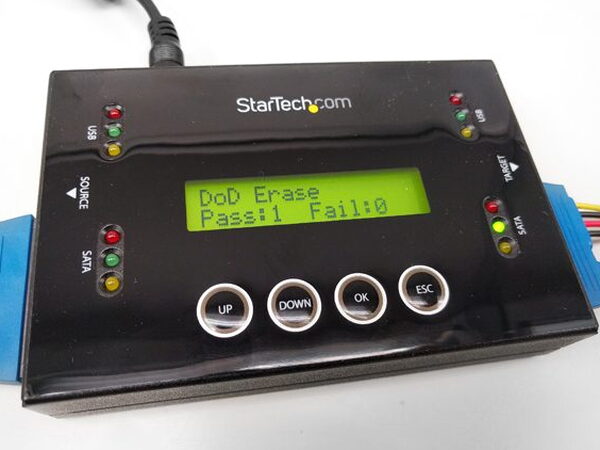
There are six erase modes: Quick Erase, Single Pass Overwrite or Full Erase, 3-Pass Overwrite or DoD Erase, 3-Pass Overwrite and Compare, Secure Erase, and 7-Pass Overwrite. Quick Erase is the mode I use most often. The 3-Pass DoD Overwrite meets the U.S. Department of Defense secure erase standard by writing over the drive three times to make sure the old data is gone.
The default failsafe prevents erasing the Source drive, which is exactly the kind of safeguard this hardware needs. If you go into the menus, though, the duplicator can erase one SATA or USB drive, or two drives at the same time.
Larger drives make the multi-overwrite modes take much longer. Even so, because the work happens in hardware instead of software, the process is still faster than doing the same jobs from a computer.
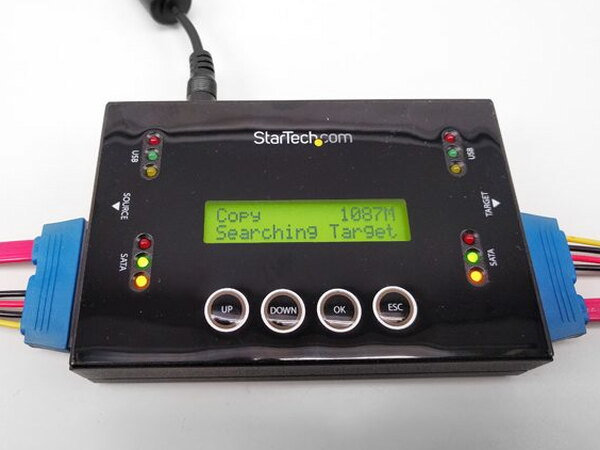
Copy options
Copying is handled through four modes: Quick Copy, All Partitions, Sector-by-Sector or Whole Drive, and Percentage Copy. Quick Copy is again the one I reach for most often.
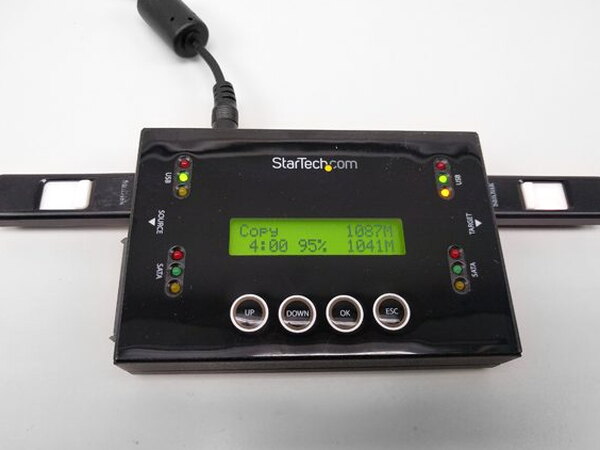
SATA-to-SATA copy speeds are very impressive. USB duplication is where the limitation shows up, because the USB ports are USB 2.0 rather than USB 3.0. Small jobs are still fine, especially with Quick Copy, but cross-interface work between SATA and USB would benefit from the higher speed USB 3.0 could provide.
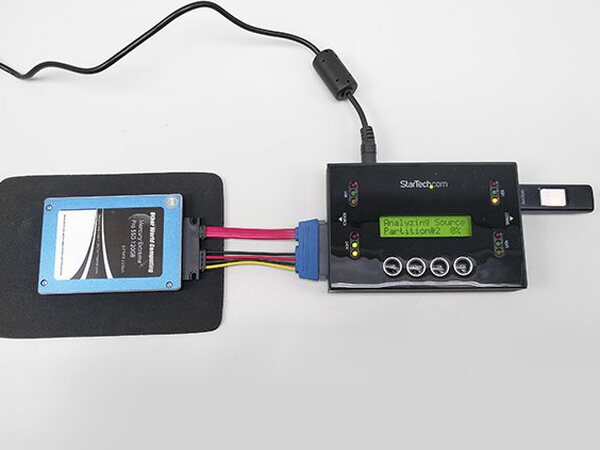
Even with USB 2.0, the copy modes are extremely useful. The compare function is a strong feature because it checks the drives after a copy finishes and confirms whether the operation worked. For any copy mode, the target drive must be the same size as the source drive or larger.
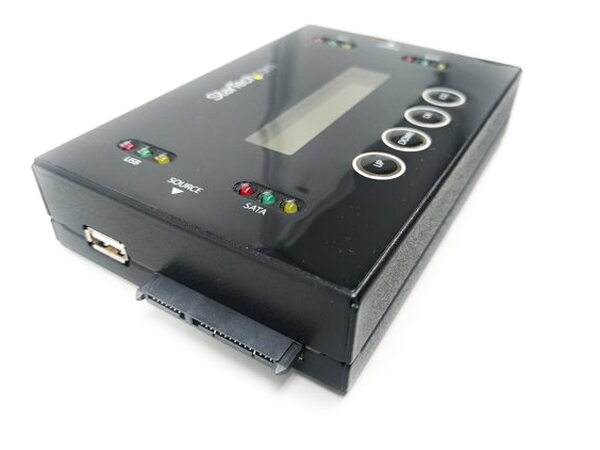
Sector-by-Sector mode is the choice for an exact clone. It copies every bit of data and every empty section from the source drive to the target, so hidden partitions come along too. I use that mode frequently for testing, especially when I want a full backup of a drive before changing the original.
Quick Questions
Q: Does it support USB 3.0?
A: No. The USB ports are USB 2.0, which limits speed on USB duplication and cross-interface work between SATA and USB.
Q: Can it erase both drives it’s connected to at once?
A: Yes, in the menus it can erase one SATA or USB drive, or two drives at the same time, though a default failsafe blocks erasing the Source drive.
Q: What’s the maximum SATA drive transfer rate?
A: Up to 6.6 GB per minute.
Q: Does it come with a warranty?
A: Yes, a StarTech.com 2-year warranty plus free lifetime technical support.
Bottom line
The StarTech USB/SATA Drive Duplicator and Eraser is a great tool with a lot of functionality packed into a small standalone box. The $796.99 suggested retail price is high, although I found it much cheaper through several outlets. At those lower prices, it is still a great buy because it can replace a whole computer for routine copy and erase work. It also includes a StarTech.com 2-year warranty and free lifetime technical support.
Specs
- Product ID: SU2DUPERA11
- Product Weight: 15.9 oz [450 g]
- Product Measurements: Length: 5.3 in, Width: 3.5 in, Height: 1.1 in
- Power Source: AC Adapter Included
- Drive Connectors: 2 x 22 pin SATA Data + Power (7 + 15 pin) Receptacle, 2 x USB Type-A (4 pin) USB 2.0
- Maximum Data Transfer Rate: 6.6 GB per minute
- Drive Size: 2.5in & 3.5in
- Compatible Drive Types: SATA & USB Flash Drive
- Warranty: 2 Years
Source: The sample for this review was provided by StarTech. Please visit their website for more info.


