
REVIEW – A hybrid work week forced me to duplicate my desk setup at home and on campus, and the two pieces I notice most are always the keyboard and mouse. I have become picky about mechanical keyboards, so I expected a lot from the Keychron V1 Max Wireless Keyboard and M3 Mini Wireless Mouse Metal Edition. I also expected a new to me brand to fall short. Instead, the $94 V1 Max became one of the best work keyboards I have used, and the $99 M3 Mini turned out to be an unusually light, quick, and deeply adjustable mouse.
What is it?
The Keychron V1 Max is a wireless 75% mechanical keyboard with hot-swappable Gateron Jupiter switches, gasket mounting, internal sound dampening, RGB backlighting, a programmable knob, and support for Windows, Mac, and Linux. It connects by USB-C, 2.4GHz wireless, or Bluetooth.
The Keychron M3 Mini Wireless Mouse Metal Edition is an optical mouse built around a magnesium alloy body. It uses a PixArt 3395 sensor, supports up to a 4000Hz polling rate over 2.4GHz with the included receiver, and also works by USB-C or Bluetooth.


What is included?
Keychron includes enough accessories to use either device with modern USB-C hardware or older USB-A ports. The keyboard package is especially complete because it supports key, switch, and case work.
- V1 Max Wireless Keyboard
- Windows and Alt key replacements
- USB-C to USB-C Cable
- USB-A to USB-C Adapter
- 2.4Ghz Receiver Extension Adapter
- USB-A 2.4GHz Receiver
- USB-C 2.4GHz Receiver
- Keycap Puller / Switch Puller
- Keyboard Brush
- Screwdriver
- Hex Key
- Replacement case screws

- M3 Mini Wireless Mouse
- USB-C to USB-C Cable
- USB-A to USB-C Adapter
- 4K Wireless Receiver

Specifications
The V1 Max is small enough for a crowded desk but still keeps the function row, navigation keys, arrows, and a knob. The numbers also explain why it feels substantial without becoming a slab.
- V1 Max Wireless Keyboard
- Width: 148.7mm (5.86in)
- Length: 328.5mm (12.93in)
- Front Height: 21.5mm (0.85in) (without keycaps)
- Back Height: 29.4mm (1.16in) (without keycaps)
- Feet Height: 2mm (0.08in)
- Feet Angles: 3.5° / 7.1° / 9.5°
- Weight: 770g ± 10g (1.7lb ± 0.02lb)
- Body Material: ABS Plastic
- Plate Material: PC (Polycarbonate)
- Polling Rate: 1000 Hz (2.4GHz and wired) / 90Hz (Bluetooth mode)
- Mount Style: Gasket Mount Design
- Battery: 4000mAh Rechargeable li-polymer battery
- Wireless Working Time (Backlit off): Up to 225 hours
- Wireless Working Time (RGB): Up to 100 hours (Lowest brightness)
- Charging Time: ~5 hours
- Bluetooth Version: 5.1
- System Support: Windows 11/10 and macOS
- N-Key Rollover (NKRO): Yes for both wireless and wired modes
- Hot-swappable: Compatible with most 3 pin and 5 pin MX mechanical switches
- Keycaps: Double-shot PBT keycaps, OSA Profile (OEM height, SA shape)
- MCU: ARM Cortex-M4 32-bit STM32F402 (256KB Flash)
- Switches: Gateron Jupiter
- Backlight: South-facing RGB LED
- Stabilizer: Screw-in PCB stabs
- Charging Port: USB-C
- Connectivity: Bluetooth 5.1 / 2.4Ghz / USB-C Wired
- Cable: USB-C to USB-C Cable with USB-A to USB-C adapter
- Operating Environment: -10℃ to 50℃ (-14°F to 122°F)

The M3 Mini is defined by its sensor, weight, and high polling rate. The 64g magnesium shell is the standout spec, but the rest of the list is not lightweight.
- M3 Mini Wireless Mouse
- Sensor: PixArt 3395
- DPI Range: 100 – 26000
- Inches per Second (IPS): 650
- Click Switch: Huano Micro Switch
- Click Switch Lifespan: 80 Million Clicks
- Lift Off Distance: 1.0 mm / 2.0 mm
- Battery: 600mAh
- Polling Rate:
- 4000Hz (2.4GHz mode)
- 1000Hz (Wired mode)
- 125Hz (Bluetooth mode)
- MCU: Nordic 52840
- Weight: 64g
- Cable: USB-C to USB-C Cable with USB-A to USB-C adapter
- Connectivity: Bluetooth 5.1 / 2.4Ghz / USB-C Wired
- Angle Snapping: On/Off
- Acceleration: 50g
- System Support: Windows 11/10 and macOS
- Body Material: Magnesium Alloy
- Mouse Feet: Teflon / PTFE

Design and build
Both products feel intentionally designed rather than assembled from generic parts. The keyboard focuses on sound, feel, and customization, while the mouse focuses on low weight and fast response.
Keychron V1 Max

The V1 Max can be changed at nearly every touch point. Keycaps, switches, gasket, plate, and internal foam are all part of the design story, and the sound absorbing materials help the board feel more polished than its price suggests.

My main build complaint is material choice. The case is ABS plastic and the plate is PC polycarbonate. The texture feels good and the weight stays reasonable, but a metal case or metal plate would likely add rigidity and long term toughness.


The hot-swappable PCB accepts most 3 pin and 5 pin MX mechanical switches, so the keyboard is not locked to the factory Gateron Jupiter switches. Those stock switches are already excellent, with smooth travel and a quick response.


The south-facing RGB is bright and easy to tune, and the clickable volume knob in the top right corner is the feature I reach for constantly. Its knurled texture makes it easy to find without looking, and the click has a satisfying feel.


The rear switches select Windows or Mac mode and the connection type. I like the flexibility, but the labels are hard to read. That is my second real complaint about the V1 Max because the switches matter whenever I move between wired, 2.4GHz, and Bluetooth use.


That reset button is used for returning the V1 Max to factory settings or applying firmware updates. For regular customization, most changes are easier through VIA or the keyboard shortcuts.


Keychron M3 Mini

The M3 Mini feels almost startling the first time you pick it up. The magnesium alloy body gives it strength and rigidity, while the cutouts remove weight, add grip, and keep my palm cooler during long sessions.

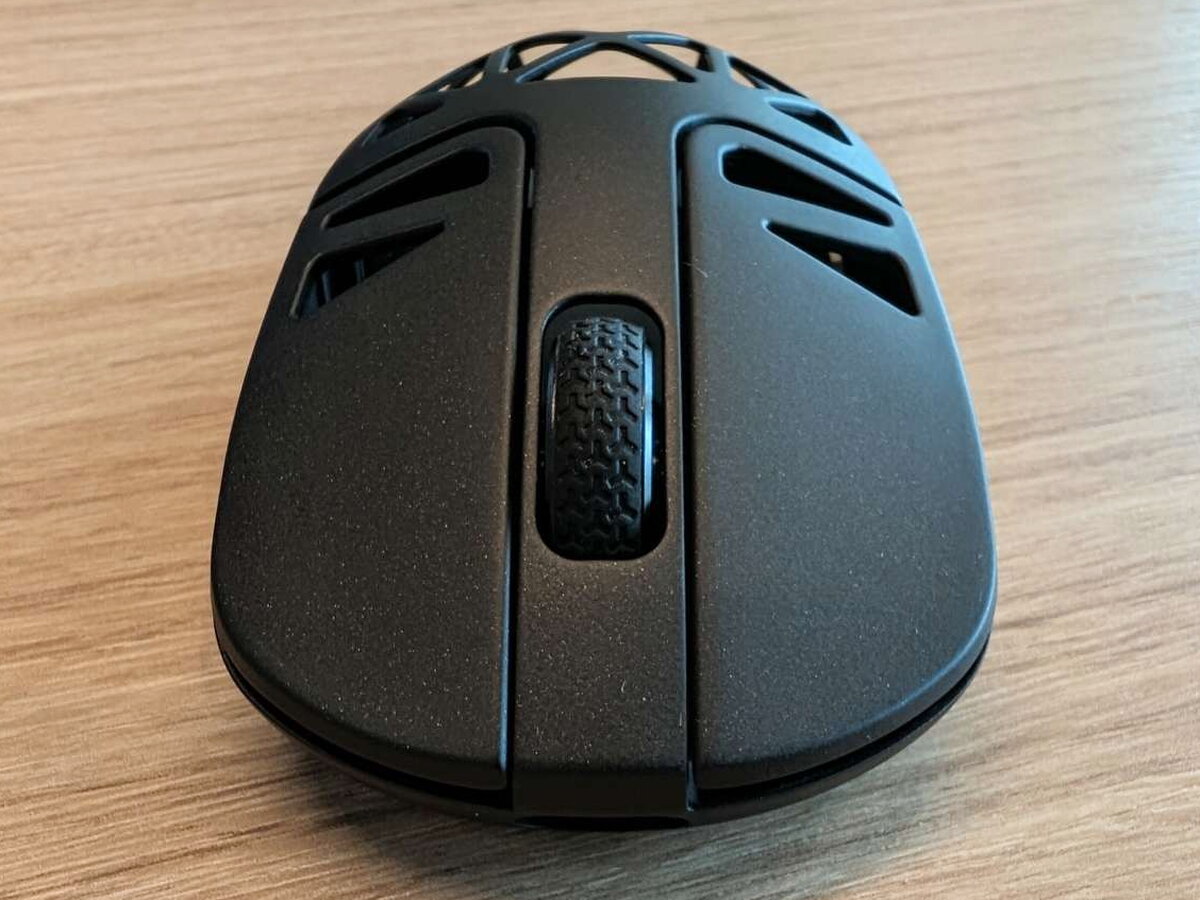
There are two small side buttons on the left side and the usual left, right, and wheel buttons up top. I would like one additional top button behind the scroll wheel, but I can live without it because the mouse body is so distinctive.
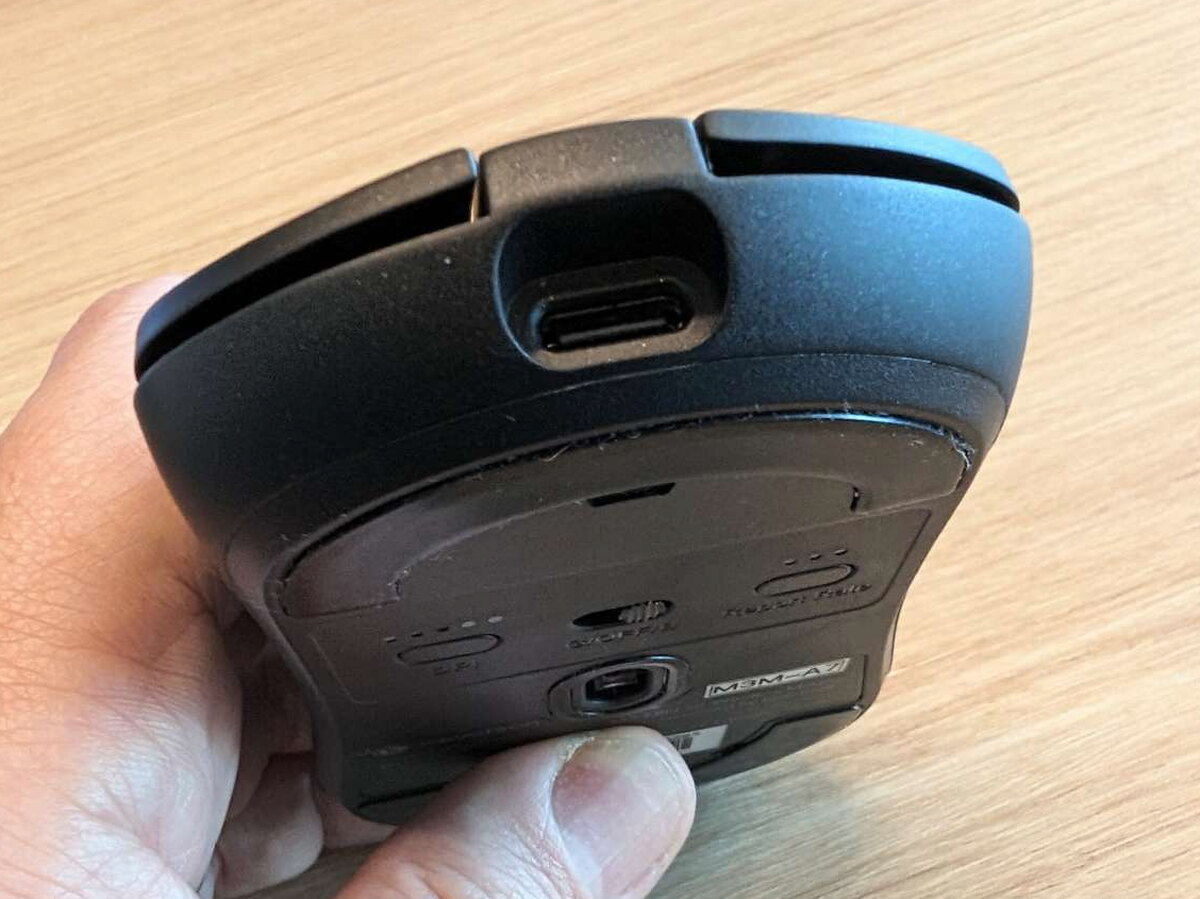


I appreciate that the 4K receiver is included, even if the miniature keyboard look is not my favorite styling choice. Functionally, it performs well and lets the mouse reach its 4000Hz polling rate over 2.4GHz.


Setup and software
Both devices can be simple plug and play accessories, but the better story is how much control they offer after the basic connection is done.
V1 Max setup
For the V1 Max, choose USB-C, 2.4GHz, or Bluetooth, then set the rear switch for Windows or Mac. The keyboard can hold two separate layouts, one for each system, which is helpful if you move between computers.

Full QMK and VIA support is a major advantage. VIA is the app used to configure keyboards running open-source QMK firmware, and even as a first time VIA user I found it approachable. You can remap keys, create shortcuts, adjust backlight behavior, and customize the knob.

Keycap and switch changes are straightforward with the included tools. RGB modes and Bluetooth pairing can also be handled with Function key combinations, so you do not need software for every adjustment.
M3 Mini setup
The M3 Mini is equally easy to connect once you pick USB-C, 2.4GHz, or Bluetooth. Bluetooth has been my favorite mode for everyday work, while wired and 2.4GHz are there when I want lower latency or the highest polling rate.


The app covers the expected high end mouse settings and a few deeper ones. You can remap buttons, change Lift Off Distance, and adjust Debounce Time.

In 2.4GHz mode, the M3 Mini can cycle through five polling rate levels from 125Hz to 4000Hz. Colored LEDs indicate the selected level, so you can change it without guessing.

Daily use
Typing on the V1 Max
The V1 Max became more enjoyable as I learned its shortcuts. Function key combinations let me toggle wireless features, pair Bluetooth, and cycle lighting without leaving what I am doing.
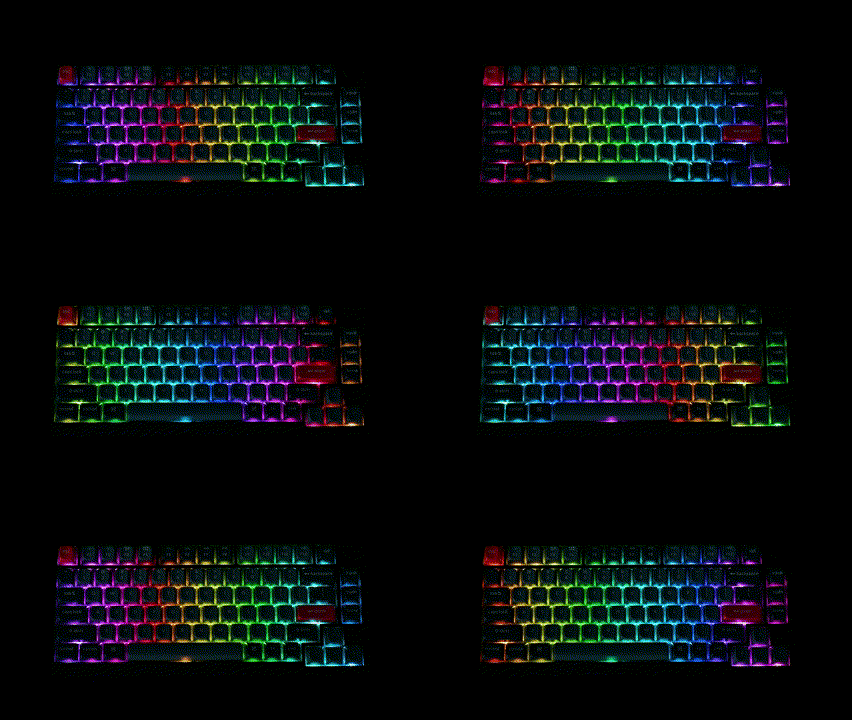
The keycaps are not shine-through, but the legends remain easy for me to see and the lighting still looks excellent. The board includes plenty of effects, including breathing, reactive, rainbow, and multiple brightness levels.
Typing feel is the reason I keep coming back to it. The gasket mount reduces vibration and keeps the response even across the board, while the hot-swappable sockets make future switch experiments simple. Cherry, Kailh, Zealios, and other MX-compatible switches can be installed without soldering.
The sound dampening foam matters in a shared workspace because it keeps the keyboard quieter than many mechanical boards. The switches feel smooth, the keycaps are comfortable, and the knob can be mapped beyond volume to media or mouse functions. In daily work, the V1 Max feels flexible, capable, and easy to trust.
Using the M3 Mini
The M3 Mini feels like it glides across the desk with almost no effort. Its low weight and responsive sensor make it fun for gaming, but the same traits also make long office days less tiring.
The cutout magnesium shell helps grip and ventilation, and it gives the mouse a style that ordinary plastic shells do not match. I still want one more top button, but that is the one feature tradeoff I keep noticing.
Bluetooth has been the mode I use most, but the wired and 2.4GHz options make the mouse adaptable. When paired with the 4K receiver, the high polling rate gives it the speed expected from a performance mouse.

What I like
- The keyboard and mouse both have a clean, purposeful design.
- The V1 Max switches have the feel and sound I want from a mechanical keyboard.
- Both products work out of the box and include useful adapters and connection choices.
- QMK, VIA, and the mouse software give the pair much more depth than basic peripherals.
What I would change
- The keyboard switch labels on the back are difficult to read.
- The plastic keyboard body is not as sturdy as a metallic one would be.
- The mouse could use one extra top button.
Quick Questions
Q: How much does each piece cost separately?
A: $94 for the V1 Max keyboard and $99 for the M3 Mini mouse.
Q: What sensor does the M3 Mini mouse use?
A: A PixArt 3395 sensor, supporting up to a 4000Hz polling rate over the included 2.4GHz receiver.
Q: How much does the M3 Mini mouse weigh?
A: 64 grams, thanks to its magnesium alloy shell with weight-cutting perforations.
Q: Can the mouse buttons be remapped?
A: Yes, Keychron’s software lets every button be reassigned, along with adjusting lift-off distance and debounce time.
Final thoughts
The Keychron V1 Max and M3 Mini Wireless Mouse moved quickly to the top of my wireless workstation list. The keyboard wins me over with its connection choices, excellent switches, customizable keycaps, quiet feel, and useful knob. The mouse earns its place with a shockingly light magnesium body, fast response, and software that lets me tune it for different work and play needs.
At $94 for the V1 Max and $99 for the M3 Mini Wireless Mouse Metal Edition, both feel reasonably priced beside other peripherals with similar features. Together, they make an easy recommendation for a campus desk, home desk, or any setup that needs compact hardware without giving up customization.
Curious how this compares to the competition? I break it down in The Best Mechanical Keyboards I’ve Tested.
Price: Keychron V1 Max: $94.00 / M3 Mini Wireless Mouse – Metal Edition: $99.00
Product Link: Keychron V1 Max / M3 Mini Wireless Mouse – Metal Edition
Source: The sample of this product was provided for free by Keychron.
Keychron did not have a final say on the review and did not preview the review before it was published.


