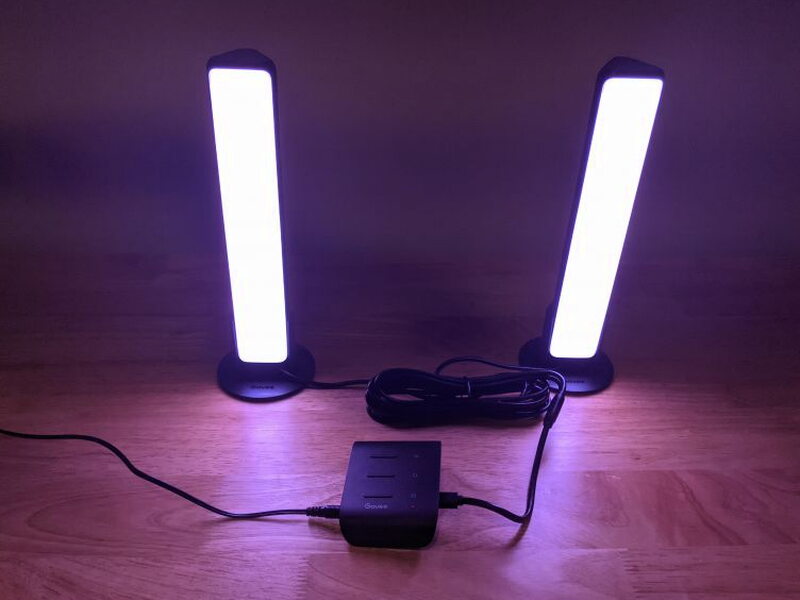
REVIEW – With a trip to an actual movie theater basically off the table lately, I’ve been looking for ways to make my home cinema setup a bit more exciting. One easy fix is bias lighting behind the television, which boosts picture contrast and eases eye strain, and you can do that cheaply with basic USB LED strips. Adaptive bias lighting takes it a step further: it reads the colors on your screen and casts matching color onto the wall, selling the illusion that the picture spills out past the edges of the TV. There are a few ways to build that, from DIY Raspberry Pi rigs to lighting baked directly into certain TVs. The Govee Flow Pro TV Light Bars land somewhere in between, and at $69.99, it’s a genuinely great value for the functionality and fun it delivers, especially paired with the Govee Home app.
The Basics
The Govee Flow Pro TV Light Bars are a pair of LED lights that read the colors on your TV screen and throw matching color out wherever you’ve placed them. An included camera and control unit handle the reading and projecting. Beyond TV backlighting, you can also run the Flow Pro as computer backlighting, music-synced lighting, or plain room ambiance.
What You Get
- Govee Flow Light Bars
- Govee Control Unit
- ColorSense Camera
- Table Mounting Brackets
- Screen Mounting Brackets
- Camera Calibration Cubes
- Power Supply
- User Manual
By the Numbers
- LED Color Chip: RGBIC WW (Red Green Blue Warm-White)
- Integrations: Amazon Alexa, Google Assistant, and Siri starting at version 4.0.0
- Working Voltage: AC100-240V
- Input: 12V/2A
- Lumen: 400lm
- Dimensions: 10.24 in x 3.31. in x 3.31 in
- Color Temperature: 2200K
- ColorSense Camera Pixel Resolution: 1080p HD
- Working Temperature: 14° to 113°F (-10° to 45°C)
Meet the Hardware
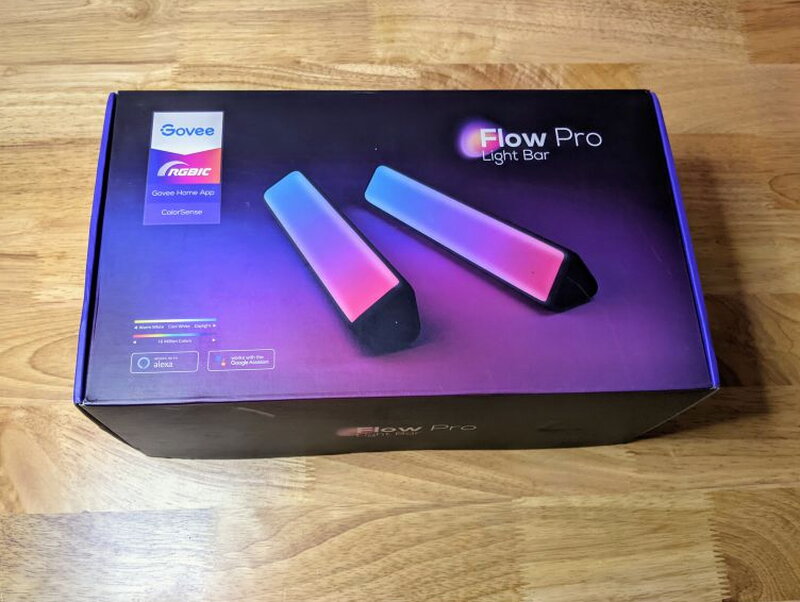
The Flow Pro ships in a sharp-looking retail box before any of this gets set up.
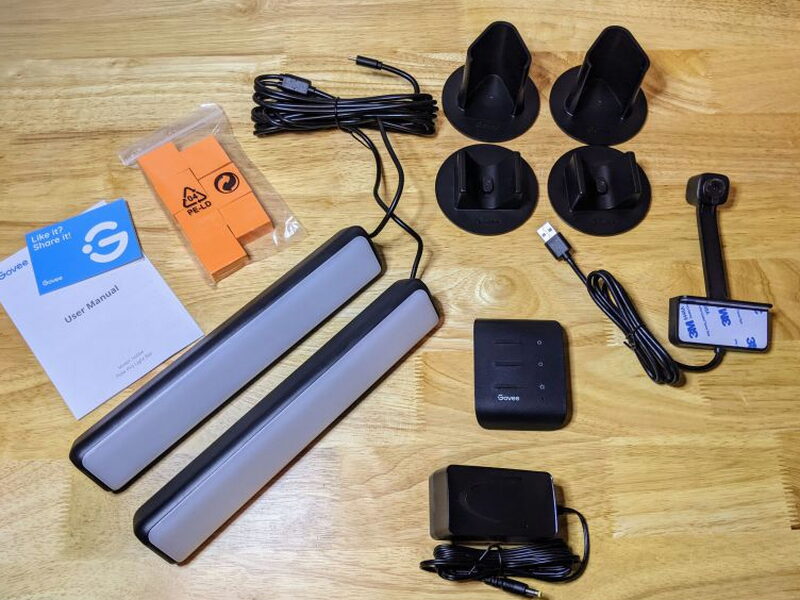
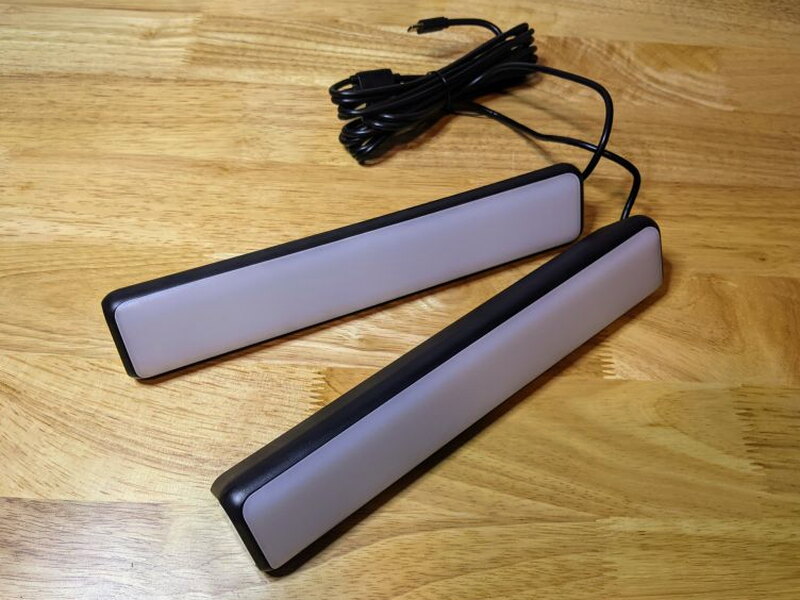
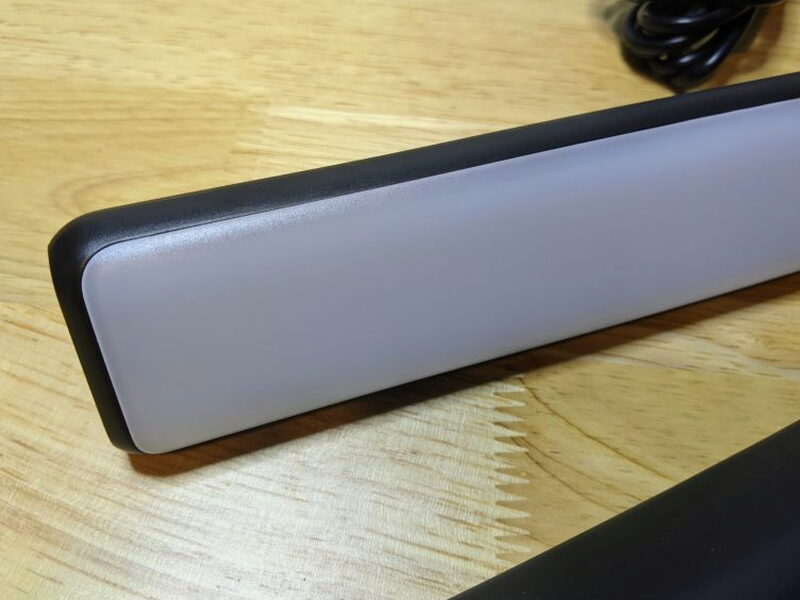
The stars of the show are the Light Bars themselves, really just two strong LED strips wrapped in plastic shells, with a translucent white lens over the front that does a nice job softening the light.
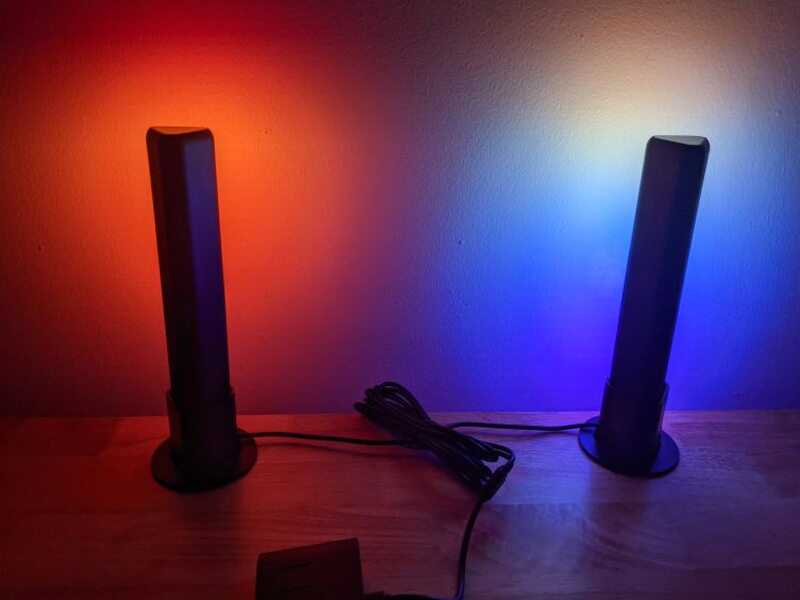
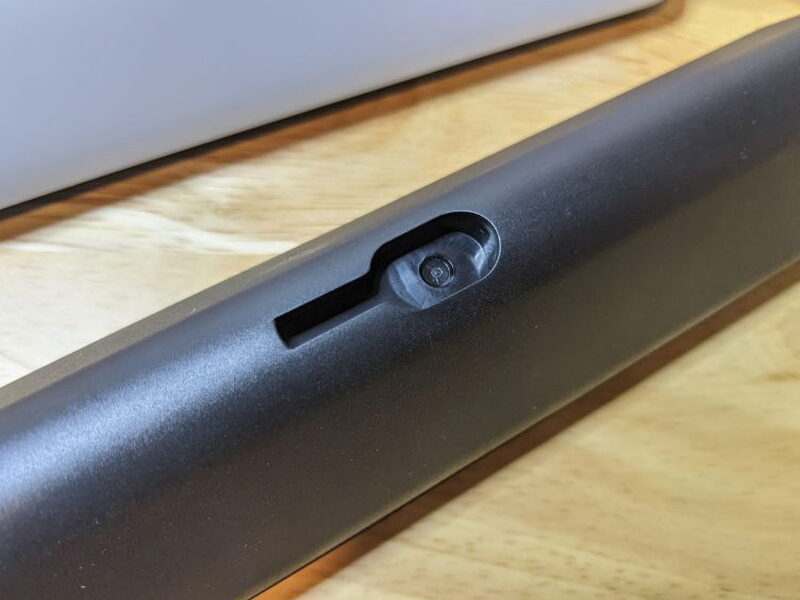
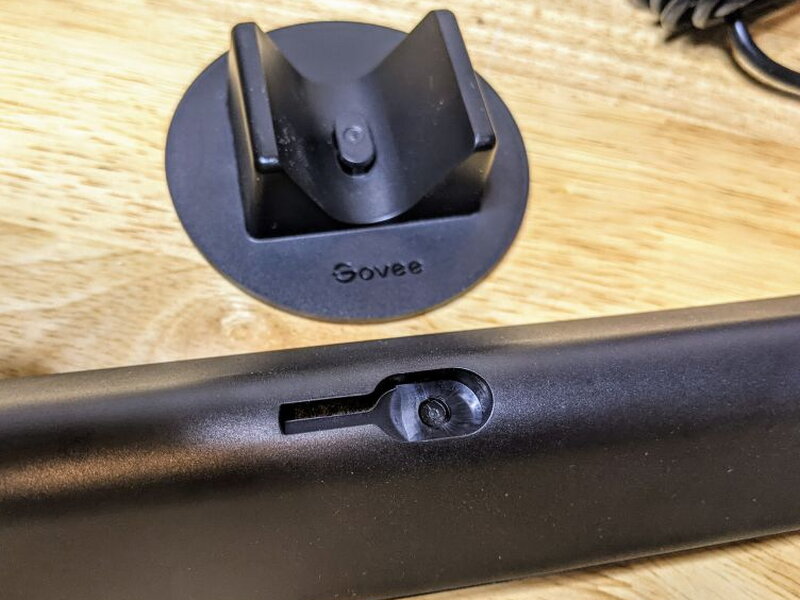
Around back, each bar has a keyhole notch for mounting. Line the slot up with a bracket and the bar snaps straight into place, whether that’s a screen mount you peel and stick to the back of a television, or a table stand for a desk setup.
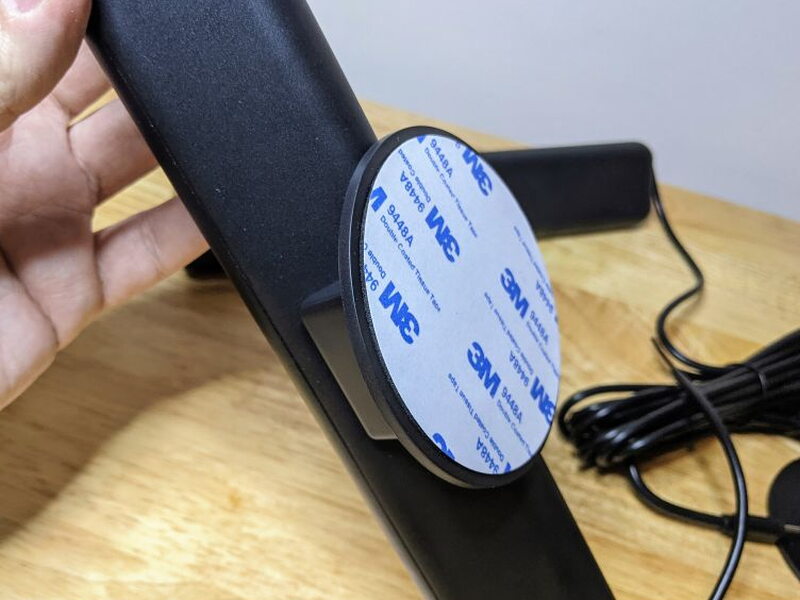
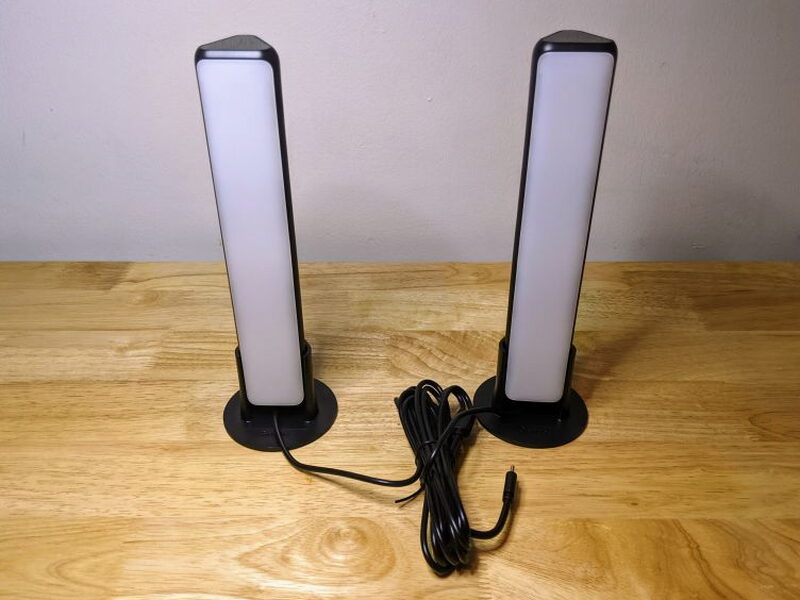
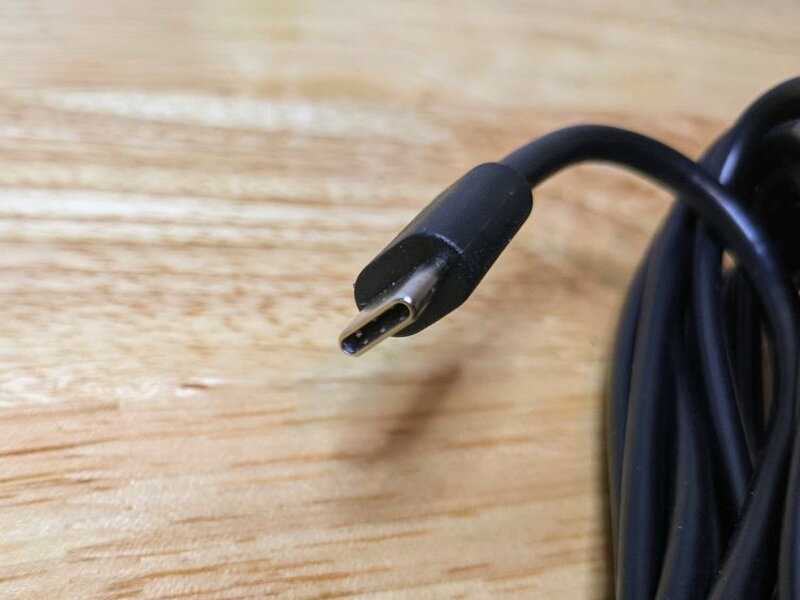
Once mounted, the bars connect to the control unit over USB-C.
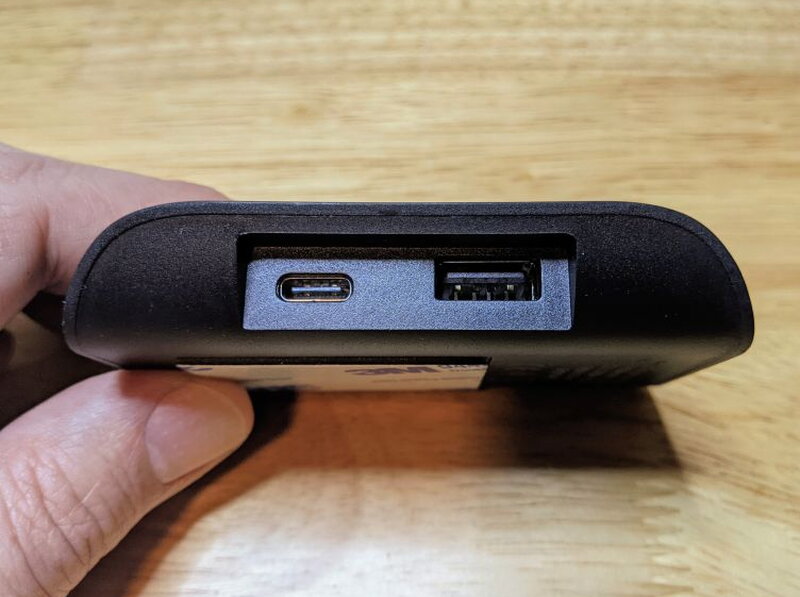
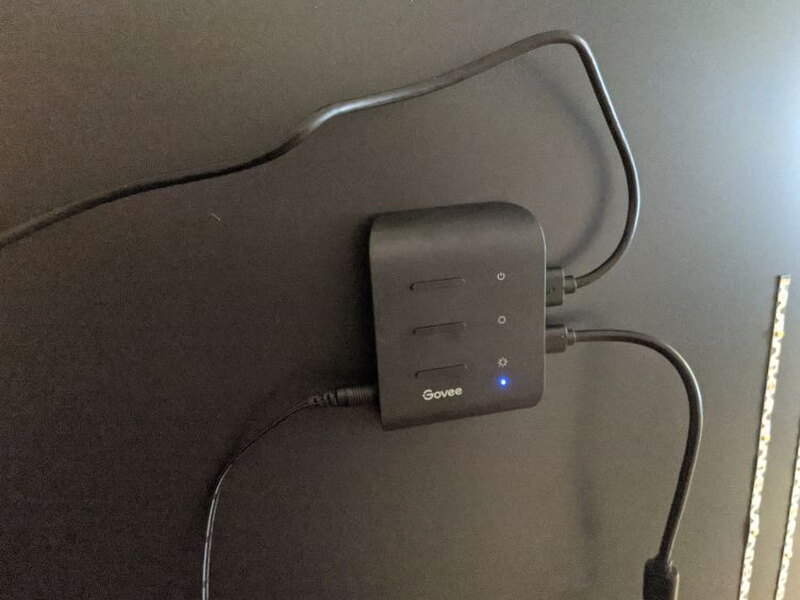
That control unit runs the whole show. Its front carries three buttons: power, light color, and one that both flips on music mode and sets brightness.
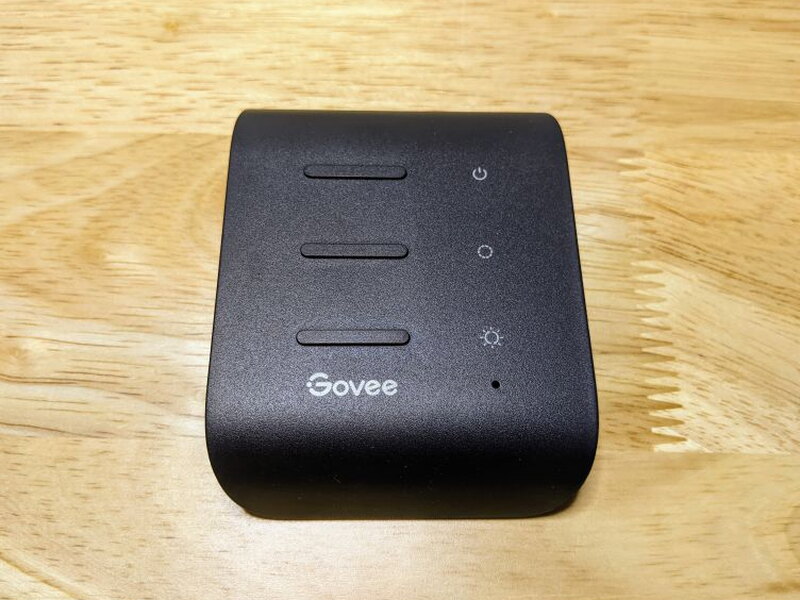
On the unit’s right side, the light bars plug in via USB-C and the ColorSense Camera plugs in via USB.
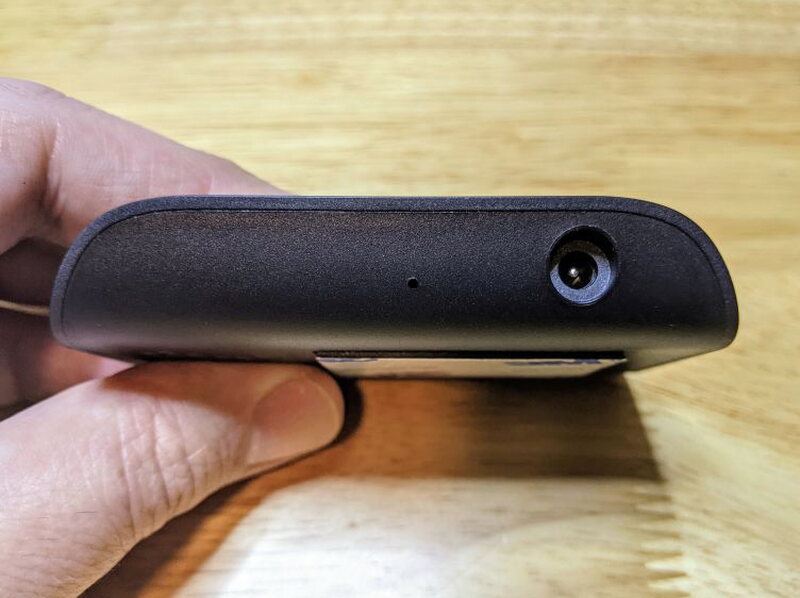
The power supply hooks into the port on the unit’s left side, which also carries a small microphone that lets the Flow Pro react to sound in music mode.
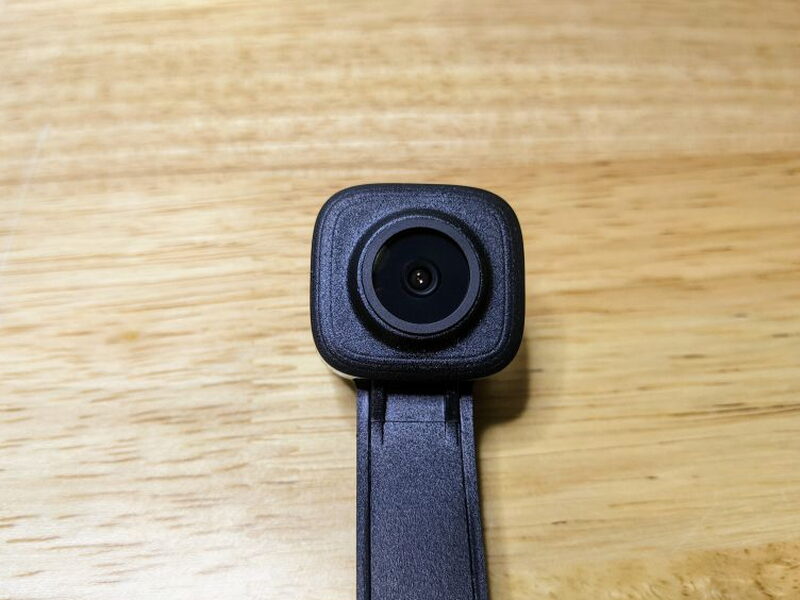
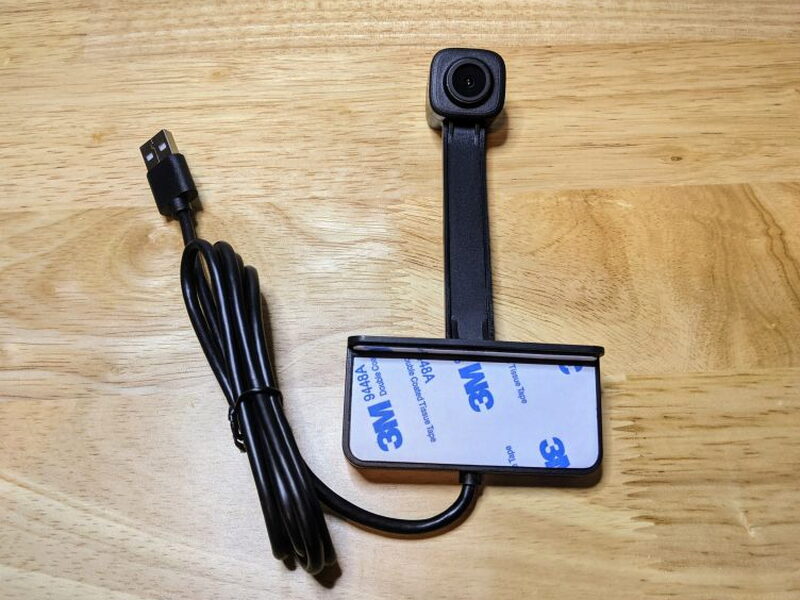
The real star of the whole system, though, is the ColorSense Camera, since it’s what makes adaptive bias lighting possible in the first place. Paired with a television, its 1080p feed gives the control unit a live look at everything on screen, and together they sync the color pouring out of the light bars.
Mounting It on a TV
Getting the Flow Pro going is fairly simple: some physical mounting on your television, followed by calibration through the Govee Home app. I ran mine purely as TV lighting, so the rest of this review sticks to that setup.
Step one was fixing the ColorSense camera to my television, which mounts on either the top or bottom edge. With no room at the bottom of mine, I went with a top mount.
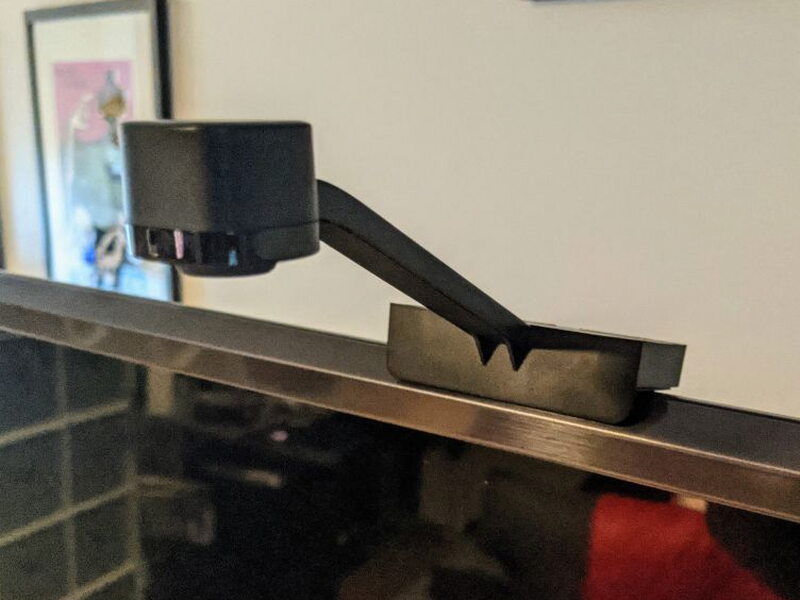
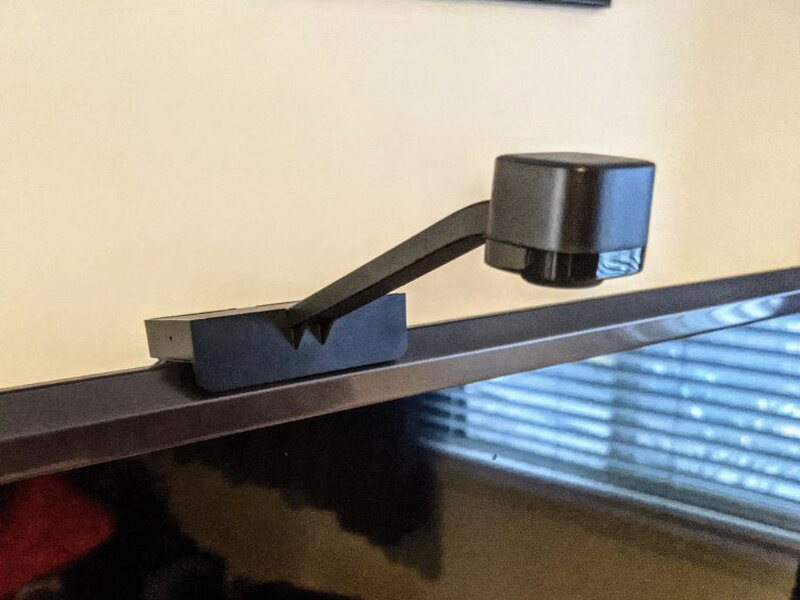
This is where I hit my first snag. My TV has an angled bevel along the top, while the camera mount is meant to rest on a flat edge. I peeled the adhesive backing and got it to grab the bevel, but it isn’t as solid as I’d like. A few weeks in, I’ve already had to readjust the camera twice, so I may need a better mounting fix eventually.
With the camera up, next comes the control unit. After peeling its own adhesive backing, I picked a spot easy to reach and close enough to the camera’s wires.
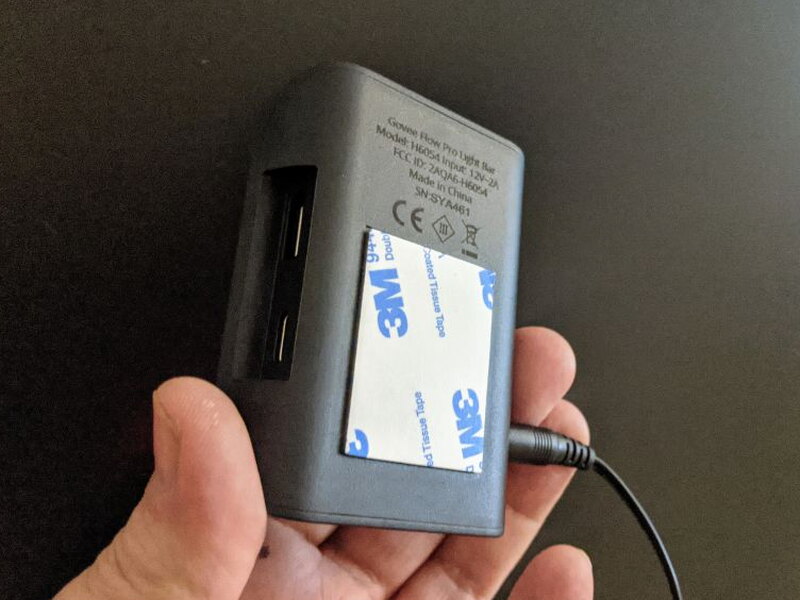
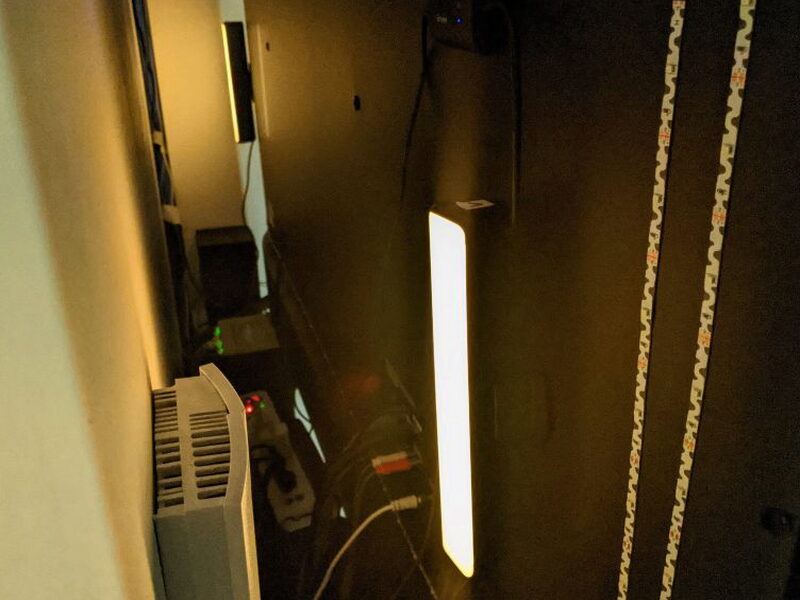
Because my TV is so big, I went with the adhesive light bar mounts rather than the stands, running the bars vertically about dead center on the screen to get the most out of the effect.
Then it was time to round up the orange camera calibration cubes, which have their own adhesive backing just like the camera and bars.
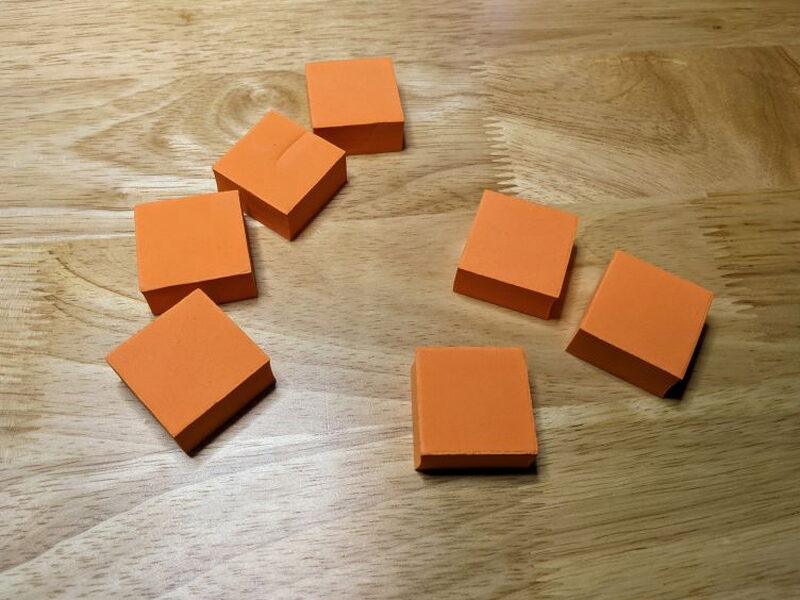
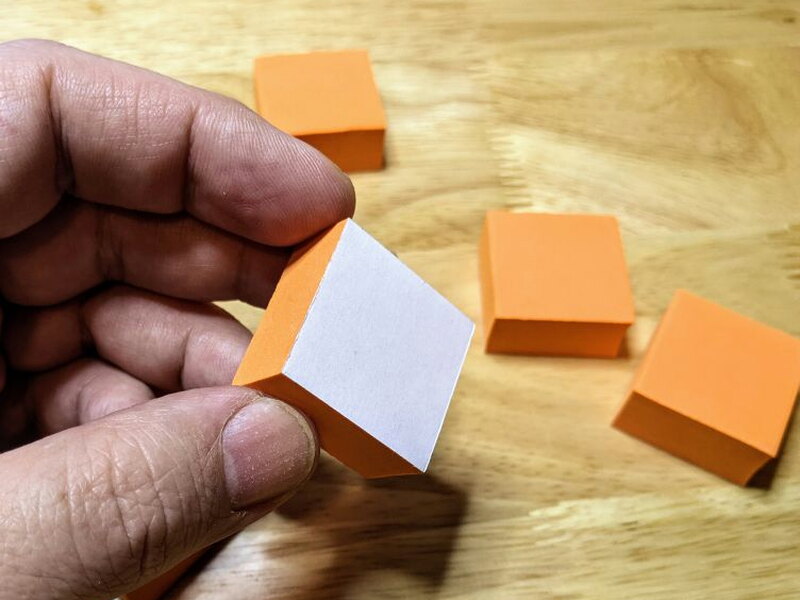
I stripped the backing and stuck the cubes around the sides and bottom of the screen. Had I gone with a bottom-mounted camera instead, this step would’ve called for a cube at the top of the TV.
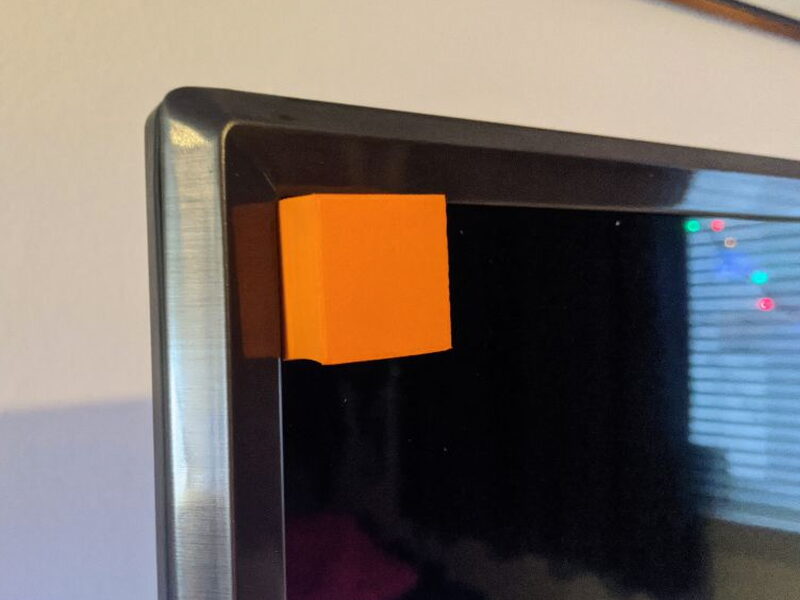
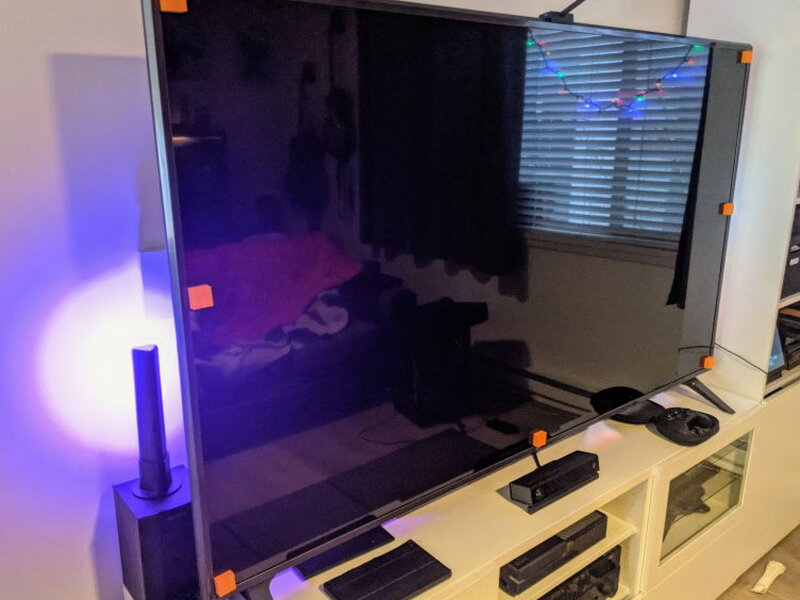
With the cubes set, I connected the Flow Pro to the Govee Home app over Bluetooth and ran the screen calibration, which lines up the camera’s focal points with the edges of the TV screen.
The Govee Home App
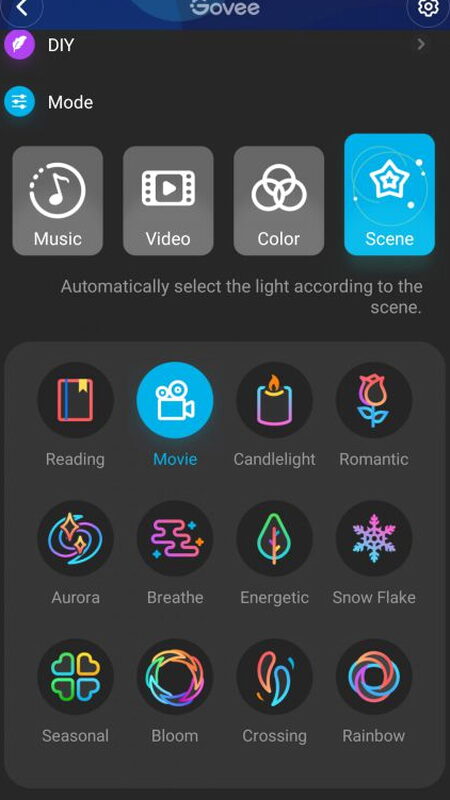
You’ll find the Govee Home app on Google Play and the Apple App Store. Beyond calibration, it runs every function of the Flow Pro from your phone and ties into Amazon Alexa or Google Home. There are far more options in the app than I can cover here. Scene mode alone offers automatic presets like Reading, Movie, Candlelight, Romantic, Aurora, and more, and you can even pull down DIY scenes made by other users.
Living With It: Music Mode
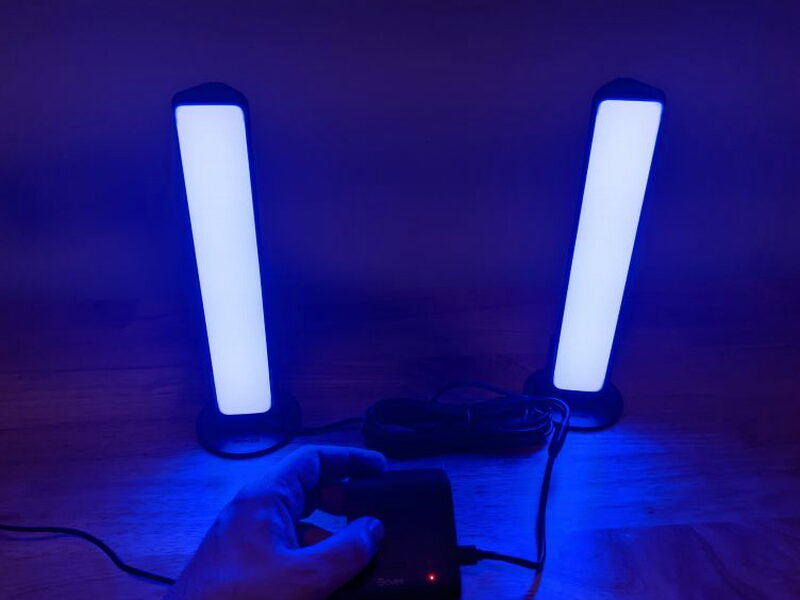
Testing the Flow Pro was a blast. I set mine up on my TV, but I can absolutely picture grabbing a second unit for my computer desk. The table mounts make it easy to put the lights wherever I want, and between the scene and color choices plus music mode, the Flow Pro genuinely brings a room to life.
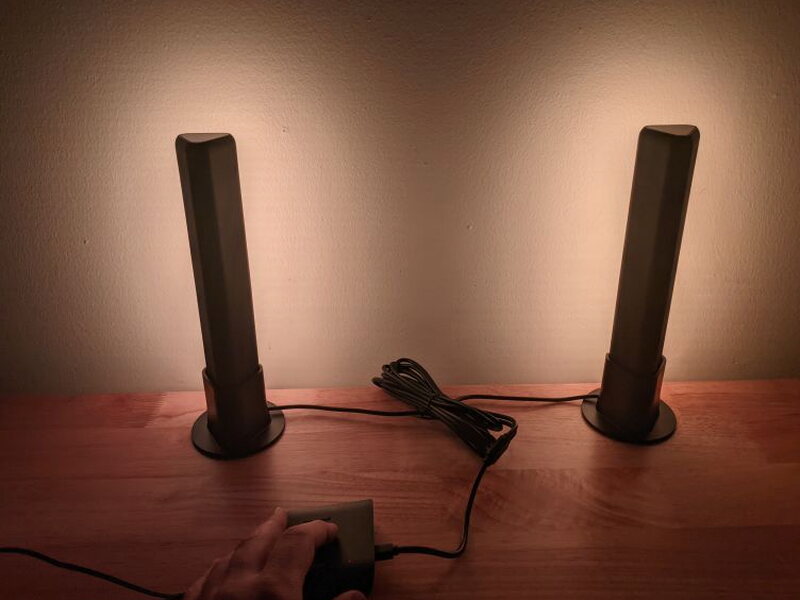
The Govee Home app gives you a handful of music modes to choose between, and you can tune how sensitive the microphone is.
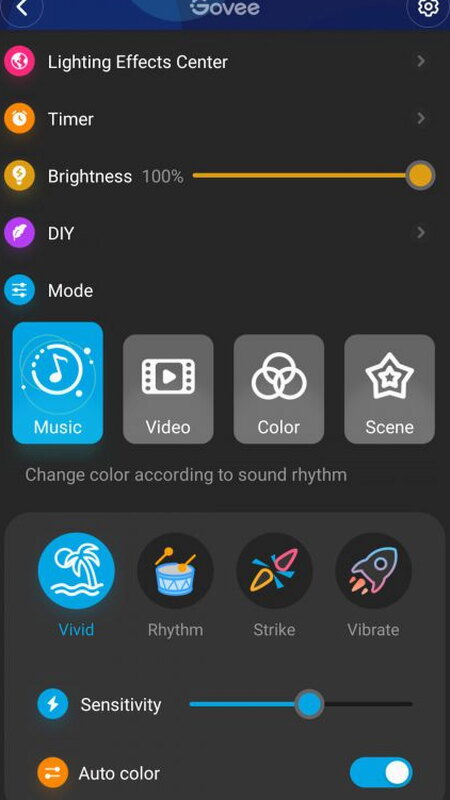
As the video shows, I had a great time running through the music modes before moving on to the TV configuration.
Living With It: Movies and Games
Once I’d run through the video calibration above, I switched over to Video mode in the Home app.
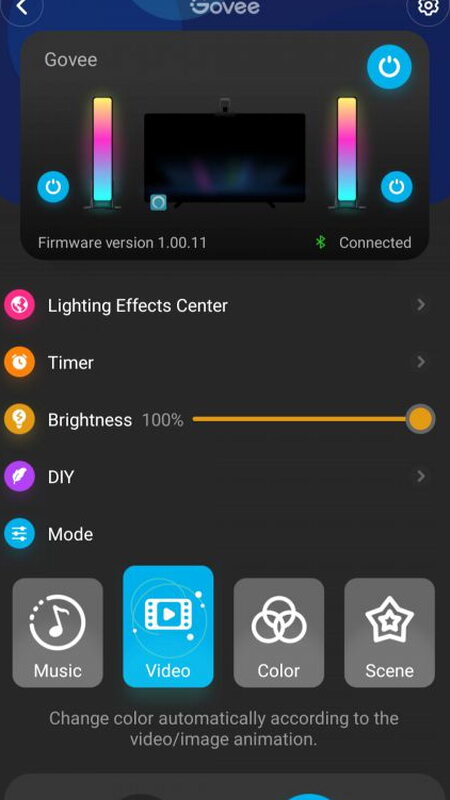
You get separate options for movies and video games, and as far as I can tell, the video game option refreshes noticeably faster. To put the Flow Pro through its paces, I lined up movies and games I knew had strong color palettes. The Music Man ranks among my favorite movies, and the Flow Pro really elevated it. The control unit seems to latch onto the most prominent color on screen and lean on it to punch up the picture, like the red it threw out during this marching-band number.
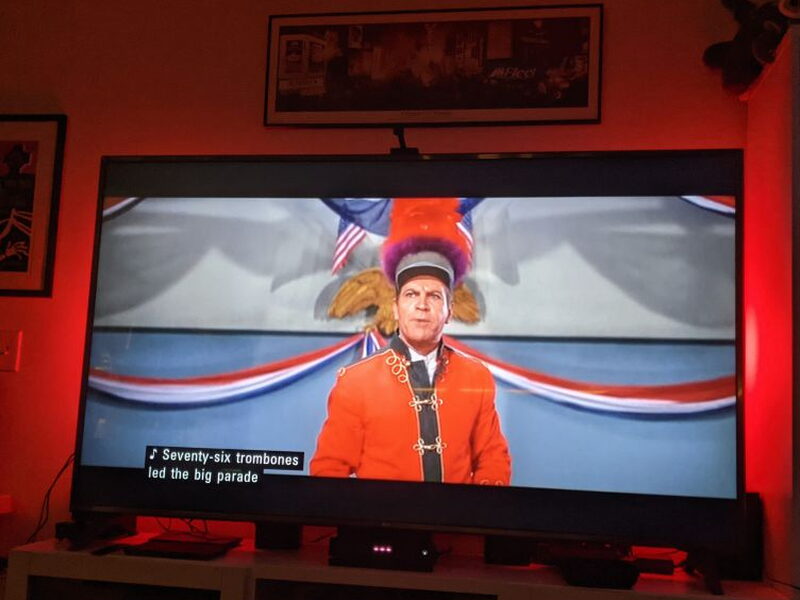
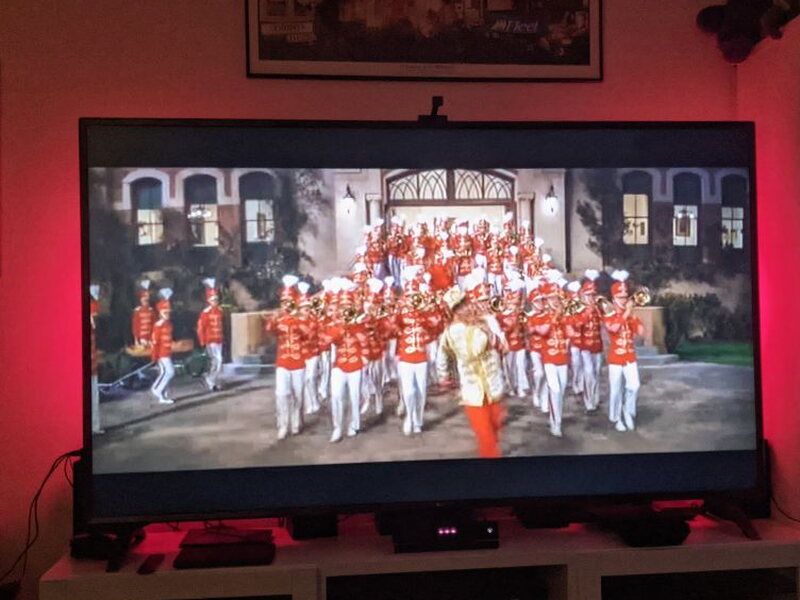
When no color dominates a scene, the Flow Pro falls back on a muted blue that still lends the picture some contrast.
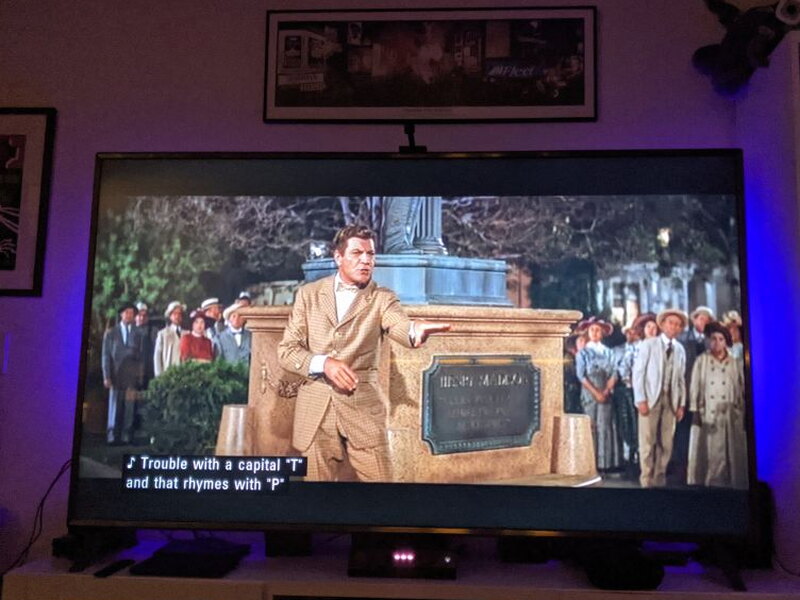
Sometimes I got distracted trying to reason out why it picked certain colors. Happily, if that starts bugging you, Movie mode holds a single static color behind the screen instead, keeping the boosted contrast without the guesswork.
By and large, though, letting the Flow Pro default to the most common on-screen color worked really well. I also ran Assassin’s Creed Odyssey through it on my Xbox One. Set in ancient Greece, the game has a hugely varied palette, and the faster game-mode refresh rate mostly kept pace with the action.
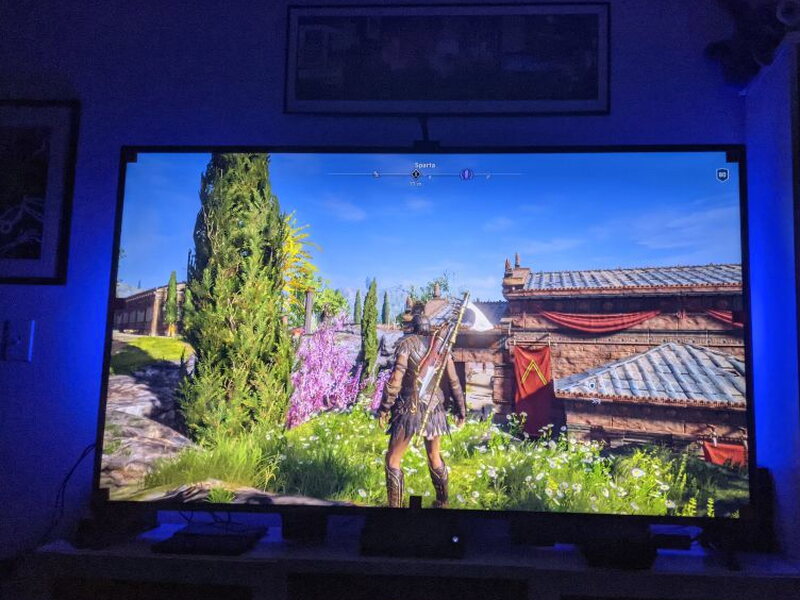
There were moments where its color picks left me puzzled. This field of green, for one, pushed out a purplish glow from the lights. A green light would’ve been the obvious call, but then my years of color theory training kicked in: purple and green are complementary colors, and that pairing maximizes contrast. So in cases like this, I suspect that’s exactly what the Govee was going for.
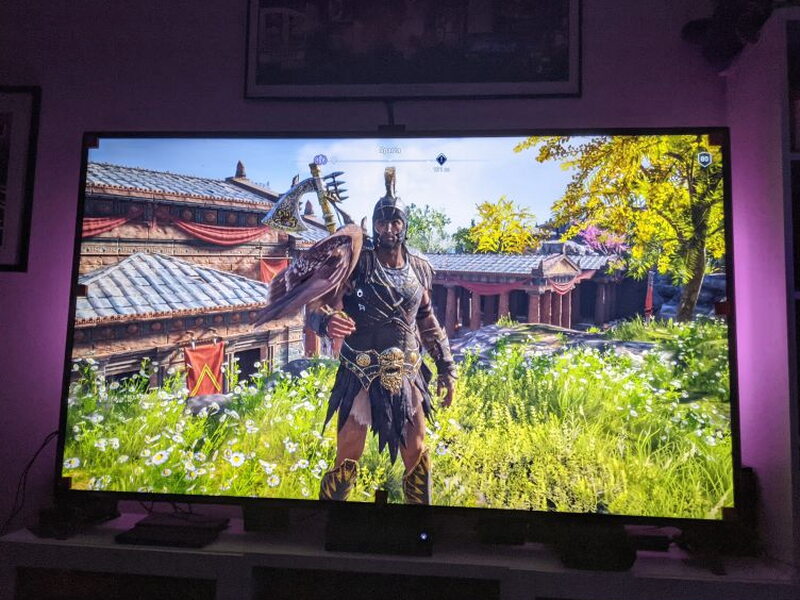
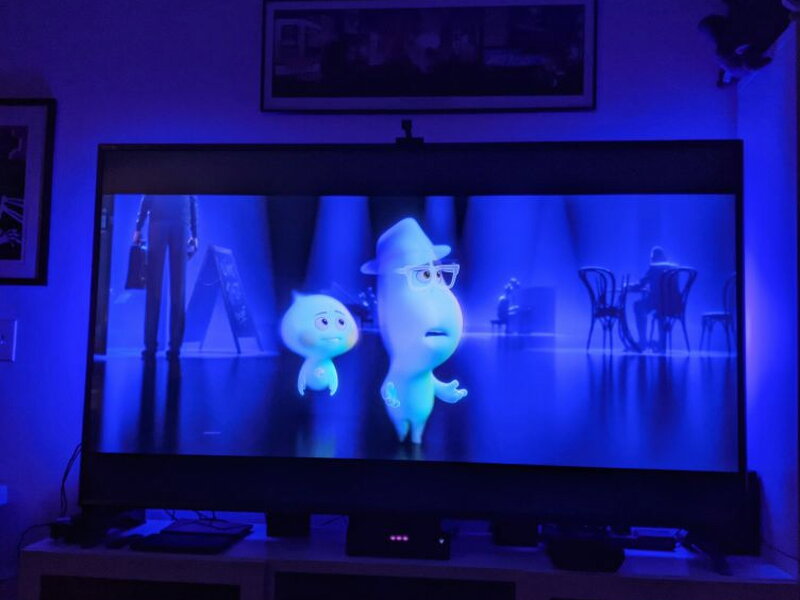
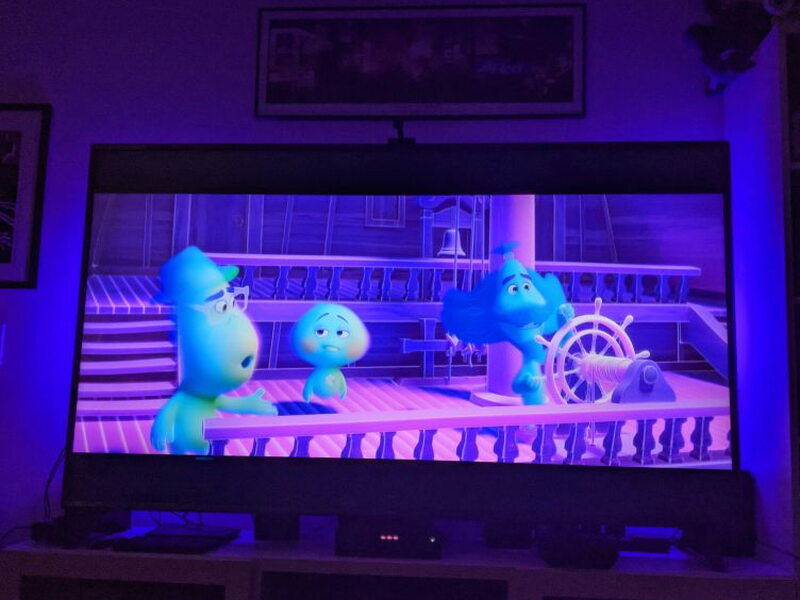
On the whole, I genuinely love watching movies and gaming with the Flow Pro running. Pixar’s Soul has a wonderfully simple palette, and the Flow Pro turned it into a joy to watch. Every so often I still flip to static colors instead of letting the Flow Pro run the show, and thankfully switching things up from my phone or through Amazon Alexa is painless. Even with the lights locked to my TV, I still get a kick out of music mode and the DIY scenes. It’s really the sheer range of options that makes the Flow Pro worth it.
The Good
- Easy setup
- Multiple uses
- App is well designed has great integration with Amazon Alexa and Google Home
The Not So Good
- Color syncing to screen image can be inconsistent
- Camera accessory might not fit all televisions
Quick Questions
Q: Does the ColorSense camera work with any TV shape?
A: Not perfectly – on a TV with an angled bevel rather than a flat edge, the adhesive mount didn’t hold as solidly and needed readjusting more than once.
Q: Can the light bars be used for things besides TV backlighting?
A: Yes, beyond TV backlighting they also work as computer backlighting, music-synced lighting, or general room ambiance.
Q: Does color syncing to the screen always look right?
A: Not always – the color picks can be inconsistent or occasionally puzzling, though Movie mode offers a single static color as an alternative when that happens.
Q: What’s needed to control it via voice?
A: The Govee Home app ties into Amazon Alexa and Google Assistant starting at app version 4.0.0.
The Verdict
Having the Govee Flow Pro TV Light Bars in my home cinema setup is something I genuinely enjoy. They bring a fun spark to gaming, movie nights, and just listening to music, and I especially love that I can move them over to my computer desk whenever I want a change. Sure, the colors can get a little distracting and inconsistent now and then, but I can always drop back into static bias lighting when that happens. That’s really the heart of the Flow Pro’s appeal: at $69.99, you’re getting an incredibly versatile lighting system, made even better by the excellent Govee Home app.
Price: $69.99
Product Link: Govee
Source: The sample of this product was provided by Govee.


