
REVIEW – My home theater has been due for a more convincing lighting upgrade. The Govee Flow Pro TV Light Bars I reviewed in February 2021 helped, but the bars were too small to create the wraparound immersion I wanted. The Govee Envisual TV Backlight T2 is the upgrade I had been looking for. At $114.99 it costs more than those Light Bars, but it adds a full RGBIC strip, a dual-lens camera, richer app features, and a much bigger wall of light behind the screen. I like it a lot, even though setup and color accuracy keep it from being a flawless win.
What the T2 Is
The T2 is a camera based ambient backlight system for 55 to 65 inch TVs. A four-section RGBIC LED strip mounts to the back of the television, a control box powers and drives the system, and a dual-lens camera watches the screen so the lights can echo the colors on the wall behind it. The Govee Home app adds scenes, music modes, voice control support, and device grouping for rooms around the house.

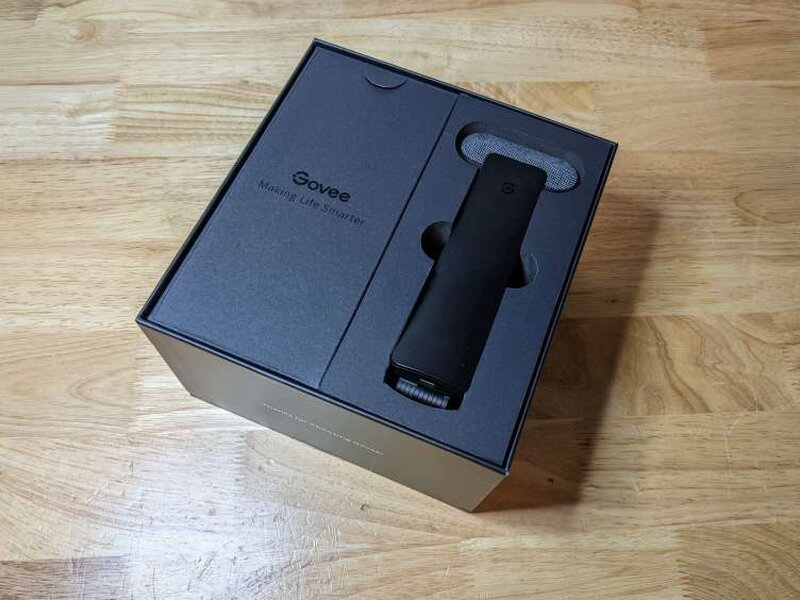
Govee packages the kit well. The box looks polished, and the components are protected inside custom-cut foam rather than rattling around loose.
In the Box
- LED strip lights
- Dual lens camera
- Control box
- Power supply
- User manual
- USB-C cable
- Calibration blocks
- Alcohol prep pads
- Strip light clips
- Mounting pads

Specs
- Light Source Type: LED
- Light Color: RGBIC
- Model: H605C
- Suitable TV Size: 55-65 inch
- Strip Length: 11.8ft/ 4 Sections
- Beads Density: 60 LEDs/m
- Connection: Wi-Fi, Bluetooth
- Control Method: App, Control Box, Voice Control
- Adapter Power Input: 100-240VAC 50/60Hz
- Control Box Power Input: 12VDC 3A

Hardware Tour
The biggest change from the older Light Bars is the new camera. Instead of one lens trying to read the whole screen, the T2 uses two outward angled lenses so it can divide the picture into zones and track more of the display.

Each lens points slightly outward, which helps the camera see the screen edges where ambient backlighting matters most.

The top of the camera has a textured finish that feels noticeably different from Govee’s older camera design.

The camera mount uses a large hinged counterweight that presses against the back of the TV. It keeps the camera steady, but it also means this version cannot be mounted at the bottom of the TV pointing upward like the Light Bars camera could.

The camera connects to the control box through a USB-C port on the bottom of the mount.

Govee includes a short USB-C to USB-C cable for that camera connection.

The control box looks almost identical to the one from the Light Bars. The front buttons handle power, color changes, and preset mode changes, while the small microphone opening lets the lights react to room audio.

One side of the controller has two USB-C ports, one for the camera and one for the LED strip.

The back of the control box has a 3M adhesive pad so it can attach to the rear of the television.

The other side of the controller is where the power adapter plugs in.

Power comes from a standard 12VDC adapter.

The light strip is RGBIC, which means each LED chip can be controlled independently instead of forcing the entire strip to display one basic color pattern. That is what lets the T2 create more detailed moving effects and more complex scenes.

The back of the strip is covered with 3M adhesive for mounting.

The strip is split into top, bottom, left, and right sections. You do not have to worry too much about which segment lands where during mounting because the app lets you calibrate the sides afterward.

The reel makes the long strip easier to handle, but the entire strip should be unspooled before powering it on.

One end of the strip terminates in a USB-C connector that plugs into the controller.

Calibration still depends on eight bright orange foam blocks, just like the earlier Govee system I used.

The alcohol prep pads are important because clean mounting spots give the adhesive a much better chance of staying in place.

Govee also includes small adhesive-backed clips. They are useful if you want extra support or want to test the strip placement before pressing the main adhesive down permanently.

Two silicone mounting pads sit where the camera meets the top edge of the TV.

Installation and Calibration
The T2 is more capable than my old Light Bars, but that extra capability brings a much more annoying setup. The long LED strip is awkward to center on the TV, and camera calibration in the Govee app took longer than expected. Even after getting it working, I still found myself tweaking the calibration every few days because I was never completely convinced I had it perfect.
The white LED strip still visible on my TV is an older strip I left in place because its 3M adhesive was extremely hard to remove.

Because of that older adhesive experience, I started by using Govee’s clips to hold the new strip before fully committing the strip’s adhesive to the TV.

The clips helped a lot. After the strip position looked right, I used all eight clips to lock the installation down.

The camera sat firmly on top of my TV, thanks to the counterweight and the silicone adhesive strip on the back side of the mount.

I placed the controller off to one side so I could reach it. If all you need is a bright solid-color bias light, the hardware is basically ready at this point, but the more interesting features need app calibration.

At full white brightness, the T2 throws a surprising amount of light behind the screen.

Camera calibration is the key step. You stick the eight orange foam blocks on the centers and corners of the TV, then move into the Govee Home app, available through Google Play and the Apple App Store.

Pairing over Bluetooth and Wi-Fi was easy. Since my Light Bars were already in the app, the T2 appeared as another Govee device. The app can organize devices into rooms and connect them with Amazon Alexa or Google Home.

From the T2 settings page, the camera calibration option starts the screen alignment process.

Once calibration begins, landscape mode on the phone is easier to use. Because the T2 has two lenses, you line up the dots with the foam blocks for the first lens, then repeat the process for the second lens.

After saving calibration, I started comparing the T2 with the Govee Flow Pro Light Bars to see how much better the full strip system felt in real use.

Gaming, Movies, and Color Matching
I started with Xbox One games because I spend a lot of time gaming. The Govee Home app offers Movie mode and Game mode for video syncing. They are very similar, but Game mode increases the response rate a little to better follow fast action.
Cyberpunk 2077 and Forza Horizon 5 were good tests because both are packed with bold color. The T2 kept up well during quick scene changes, especially in Forza. If there was a bit of delay here and there, I rarely noticed it because the game action moved on so fast.

For movies, I wanted something as colorful as the games, so I used Thor: Love and Thunder. Its bright action scenes gave the T2 plenty to work with.

The effect made watching more fun, but it also made me think about what the camera was actually sampling. Sometimes the lights seemed to pull color from the center of the image and place it along the side of the TV, which felt wrong.

The T2 is strongest when one dominant screen color fills the scene, such as a mostly violet shot.

It also did well when gold and orange tones appeared around the frame during an action scene.

That scene looked solid, but it also shows one of my issues with the system. When the color matching is very active, it can sometimes pull attention away from the movie instead of deeper into it.

Nature videos told the same story. The T2 looked excellent with a single dominant color, but it struggled more when the screen was filled with many competing colors.

I ran a batch of ambient light tests and recalibrated the camera several times, but the results stayed mixed.

Moving the camera position did not solve the inconsistencies.

With static images, the T2 usually finds the correct colors after a second or two. On color bars, though, it left gaps between several colors. Red barely appeared, and cyan was also missing.

A plain white screen was stranger. The T2 added yellow on one side, magenta along the top, and orange on the other side for reasons I could not figure out.

The App Makes a Difference
Even with those color quirks, the T2 still improved gaming and movie sessions. It becomes a much more interesting product once you explore the Govee Home app instead of only using screen matching.

The app offers hundreds of preset scenes for different moods and occasions. I lost about an hour just scrolling through them and trying different effects.

The app also includes labs where you can create scenes or run atmospheric effects with sound, such as flowing water or thunderstorms. The options are genuinely fun and add real value. There are animal sounds, odd effects like frying bacon, and original soothing melodies paired with their own lighting shows.

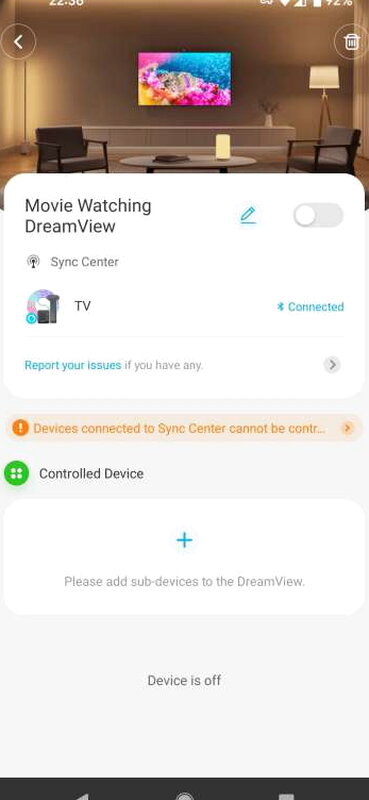
Govee Dreamview is the app feature I wish I could have tested. It lets compatible Govee lights sync together for room-wide, content-reactive lighting, but my Govee Flow Light Bars do not support Dreamview, so I could not pair them with the T2.
Govee Envisual TV Backlight T2 Test Videos
I recorded several test videos while using the T2 so the strengths and weaknesses are easier to see.
On a spinning color wheel, the T2 trails the screen colors slightly, but it stays reasonably close.
When colors are more diffused, the T2 has a harder time keeping up, and yellow and orange tones lean strongly toward red.
Full-screen color transitions are one of the T2’s best use cases, even if many colors still skew red.
During full-screen color wipes, the T2 visibly works to keep up and occasionally misses, especially with dark blues and purples.
Overall, I like having the Govee Envisual TV Backlight T2 on my TV. It makes gaming and movie nights more enjoyable, and the Govee Home app gives it a lot more personality than a basic ambient strip. The uneven color matching and finicky calibration are real drawbacks, but the T2 still feels like a meaningful upgrade.
The Good
- Expanded color palette and effects with RGBIC lights
- Large number of room scene options
- App is well-designed and feature-rich
The Not So Good
- Difficult to set up
- Light colors are not always in sync with the picture
- Poor instructions
Quick Questions
Q: What size TVs does it fit?
A: 55 to 65 inch televisions.
Q: How does it compare to a single-lens ambient light system?
A: It uses two outward-angled lenses instead of one, letting it divide the screen into zones and read more of the display than a single-camera system.
Q: Does it accurately match on-screen colors?
A: Not always – color matching struggled with busy, multi-color scenes and skipped some colors like red and cyan entirely on a color-bar test.
Q: Can multiple Govee lights sync together through Dreamview?
A: Only with compatible devices – the reviewer’s older Govee Flow Light Bars don’t support Dreamview, so they couldn’t be paired with the T2 for room-wide syncing.
Verdict
The Govee Envisual TV Backlight T2 is a solid step up from my Govee Flow Pro TV Light Bars, but it is not perfect. The app is excellent, the scene library is huge, and the RGBIC strip can fill the wall behind a TV with impressive light. At the same time, setup takes patience, the instructions need work, and the camera sometimes picks colors that do not match the picture as well as I expected. Even with those flaws, Govee still feels like the leader for ambient TV backlights in this price range. At $114.99, the T2 is worth considering if you want simple, bright bias lighting plus a lot of extra effects to play with.
Price: $$114.99
Product Link: Govee
Source: The sample of this product was provided by Govee.
RATING: 4 stars


