
REVIEW – The more time I spend at my desk, whether working or gaming, the more I appreciate accessories that look sharp while still pulling their weight. Hand me a sleek mouse stacked with extra buttons or a retro mechanical keyboard with media controls, and as long as it fits my desk’s vibe, I’m clicking “add to cart” without a second thought. The Cololight Colo Play desktop controller checked every one of those boxes, right down to its friendly $111.99 price. The instructions are pretty awful and not every feature is worth much, but the Colo Play scratches an itch I didn’t know I had, and it looks great doing it.
The Basics
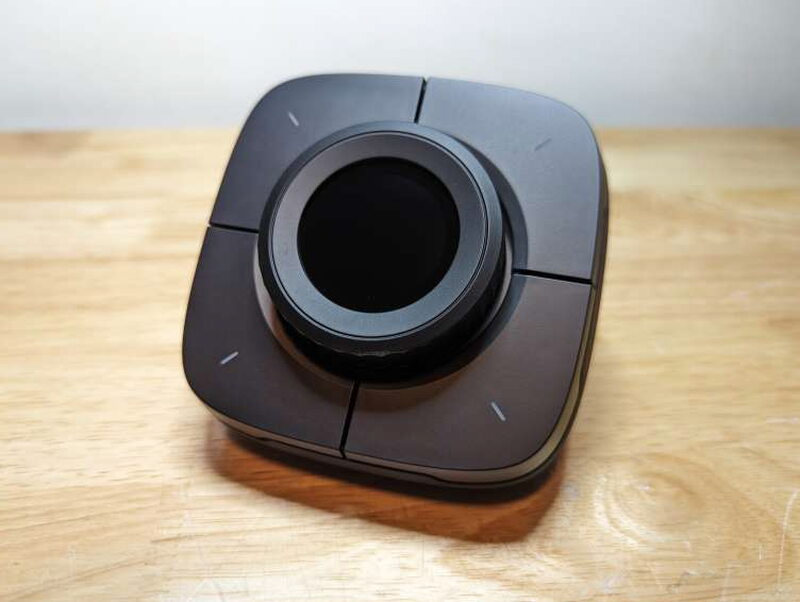
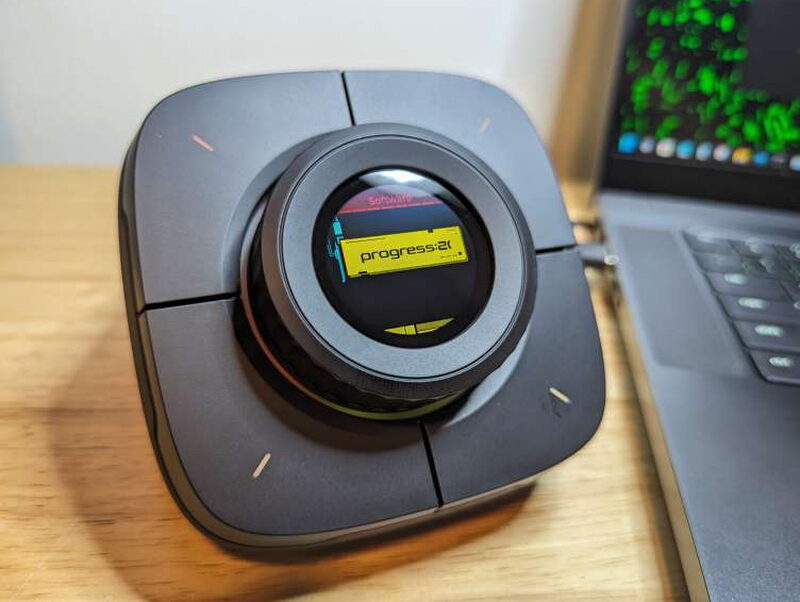
The Cololight Colo Play is a cyberpunk-styled desktop controller packing RGB LEDs, four big programmable buttons, an oversized clickable dial, and a little LCD screen that can show handy info like your computer’s CPU, GPU, and RAM usage. It can hop onto WiFi all by itself, with no PC connection, to grab updates and new apps. It works with both Macs and PCs, though some features, such as computer monitoring, aren’t available on Macs.
In the Box
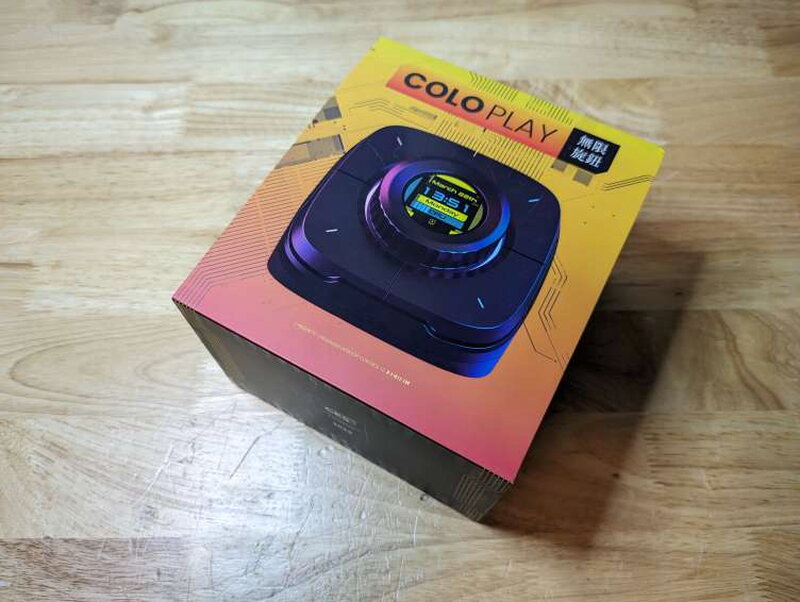
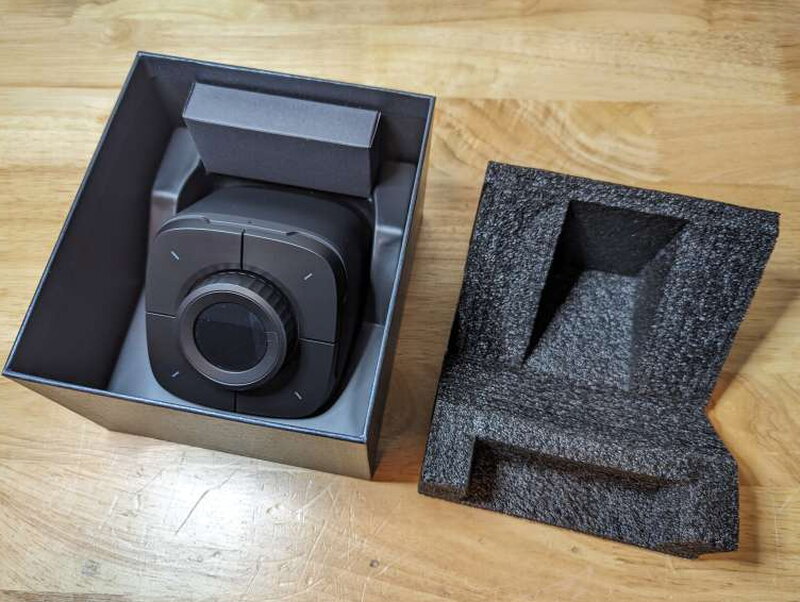
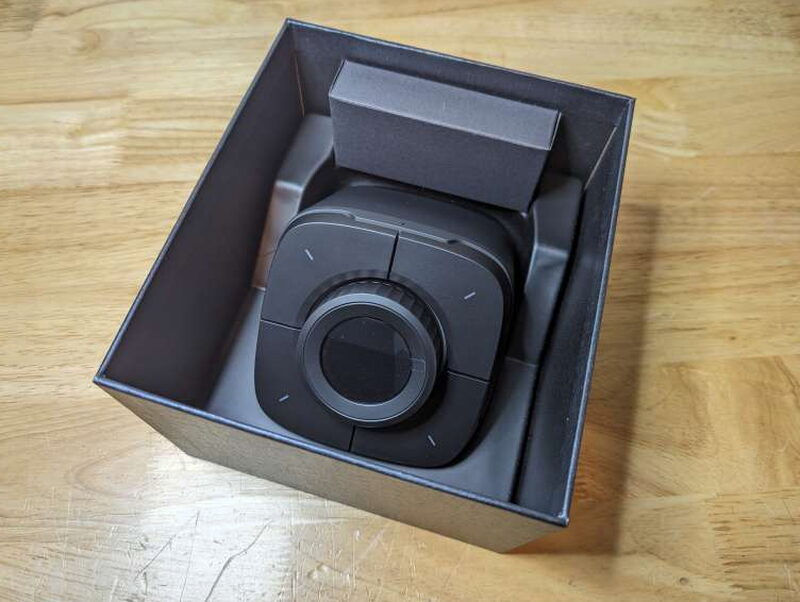
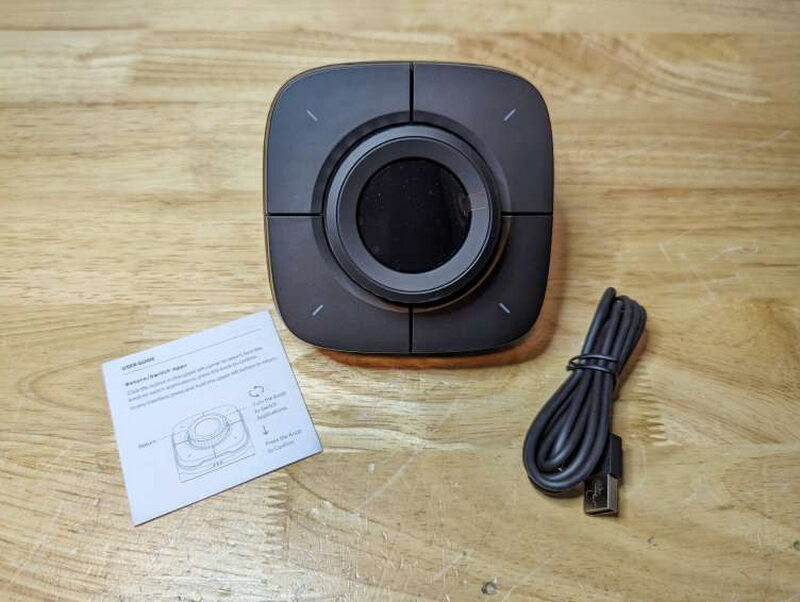
- Colo Play Desktop Controller
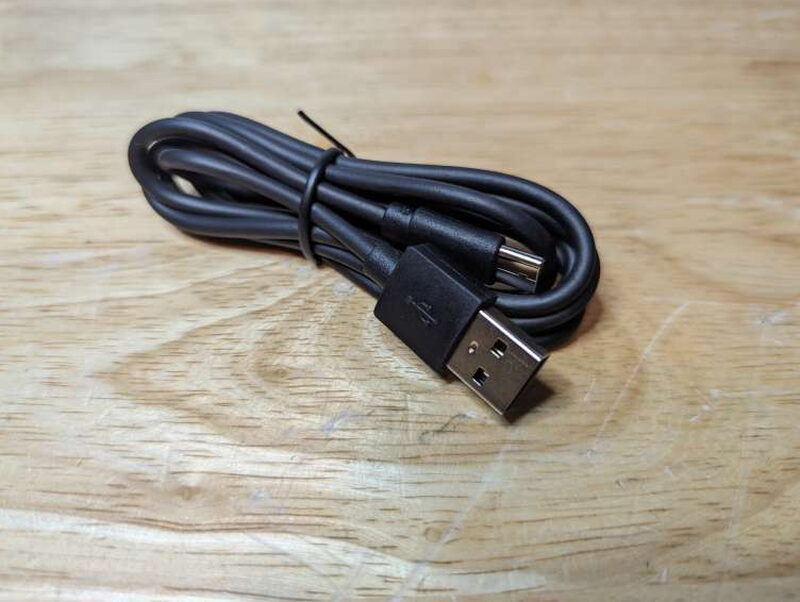
- USB-A to USB-C charging cable
- User Manual
- Cololight Stickers
By the Numbers
- Power: DC 5V 2A
- Interface: USB- C
- Operating Temperature: -5~45°C
- Operating Humidity: 5~95%
- Audio: Internal microphone and speaker
- Communication Protocol: Built-in Wi-Fi 2.4GHz
- Dimensions: 143 x 112 x 98mm
- Weight: 870g
- Color: Black
- Material: ABS, Zinc alloy
- Screen size: 1.28 inches TFT LCD
- Screen resolution: 240 x 240
- LED: 16 million RGB
- Compatibility: Mac and PC
Design and Build
The Colo Play controller carries a sleek, futuristic look that would feel at home on any gamer’s or office worker’s desk. Its body is matte black ABS plastic with a smooth, faintly textured feel.
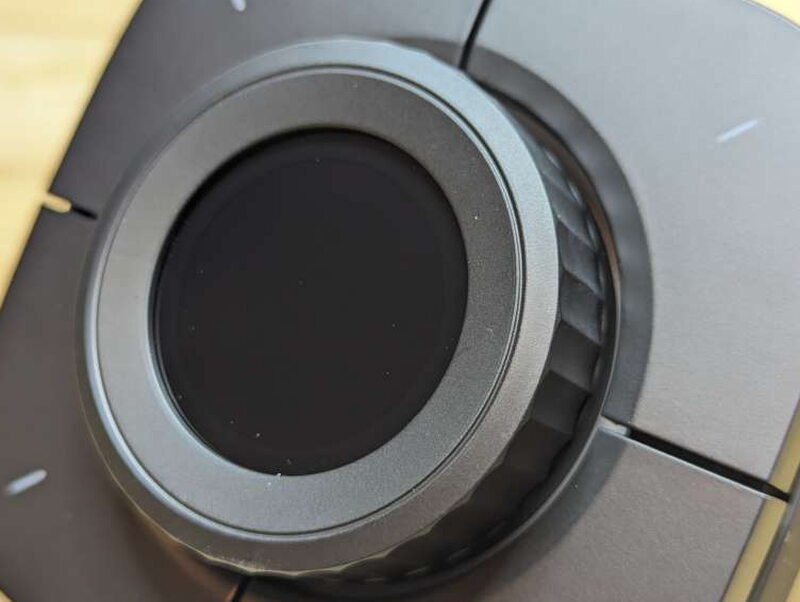
That dial has chunky ridges that make it easy to turn and a satisfying click when you press it.
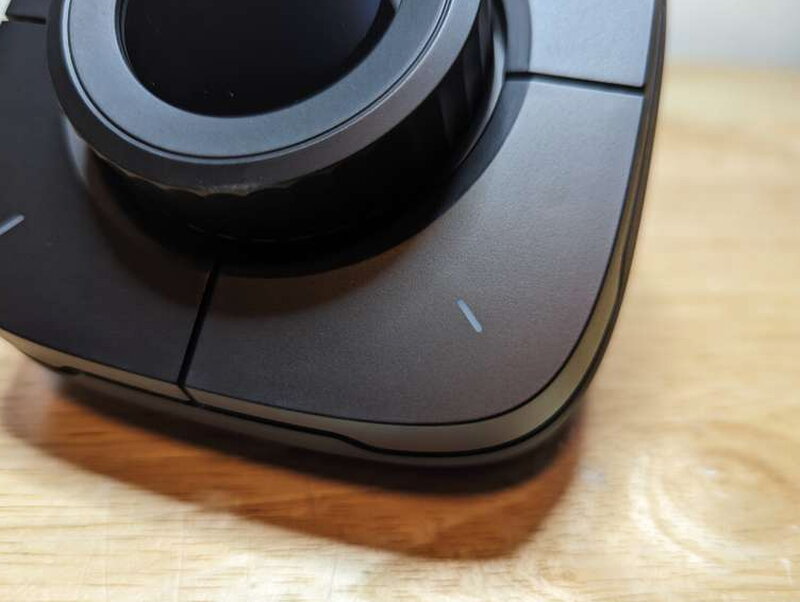
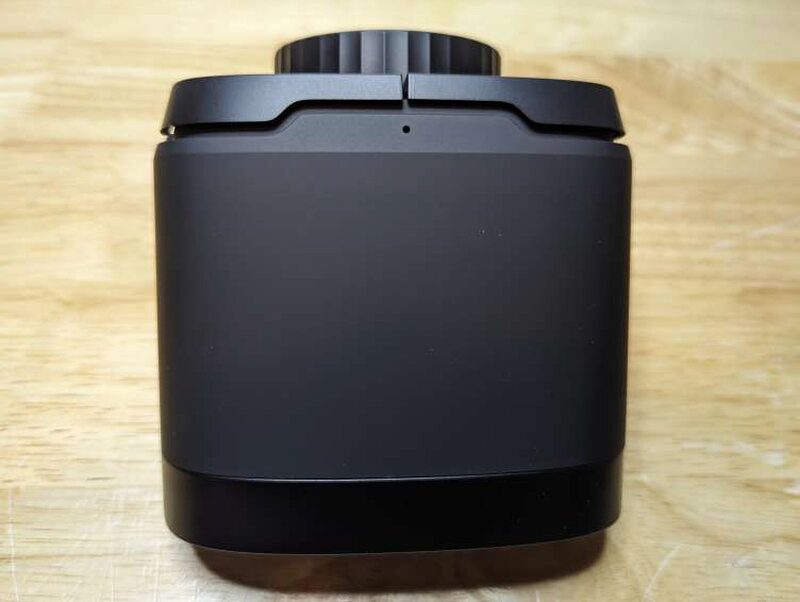
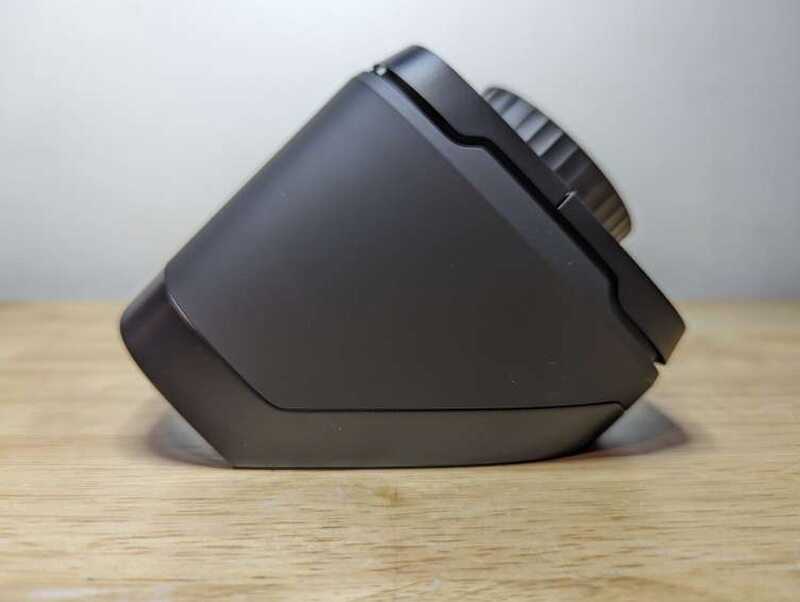

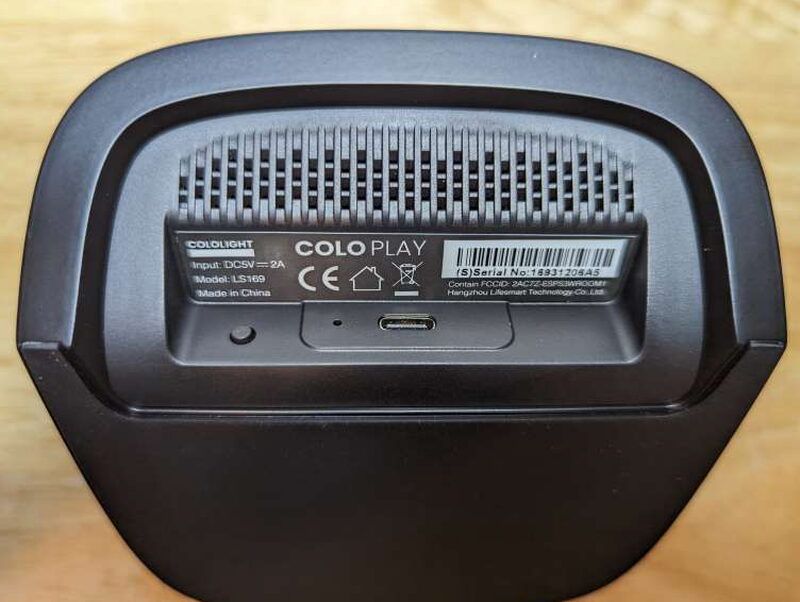
Once it’s powered on, the LED lighting and the small TFT LCD screen really boost the Colo Play’s looks. You can set the LEDs to different modes, colors, and brightness levels, while the LCD screen does everything from running retro video games to showing the CPU status of a connected PC.

Getting Started
Getting the Colo Play going starts with plugging it into power via the USB-A to USB-C cable. From there the controller walks you through picking your language, time zone, and WiFi access point. You make choices and type things, like a WiFi password, with the dial.
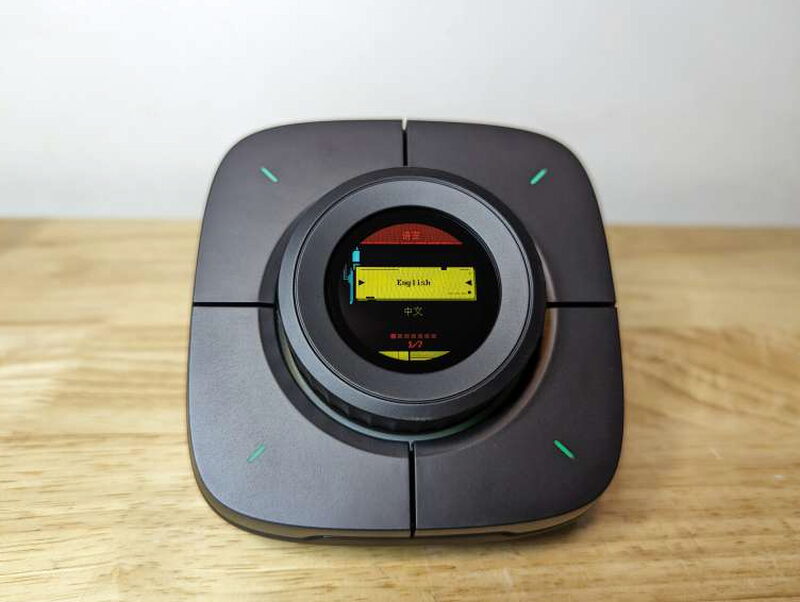
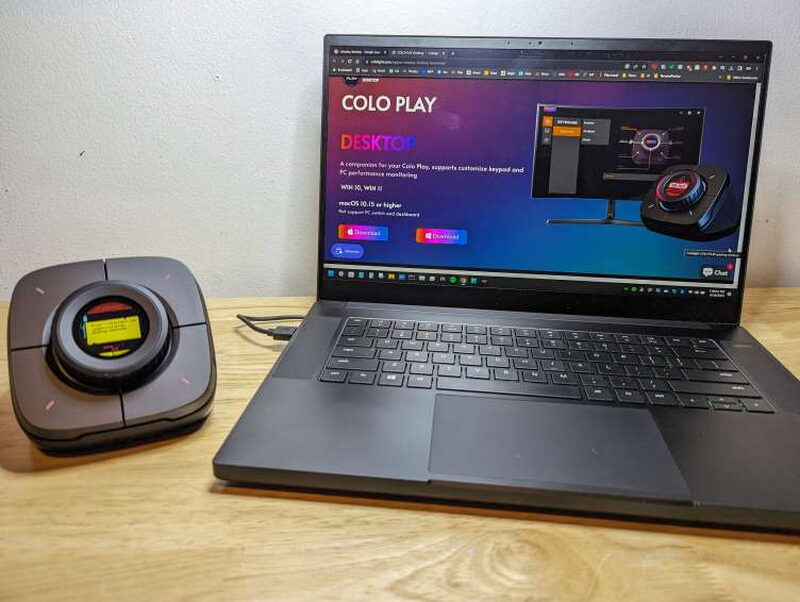
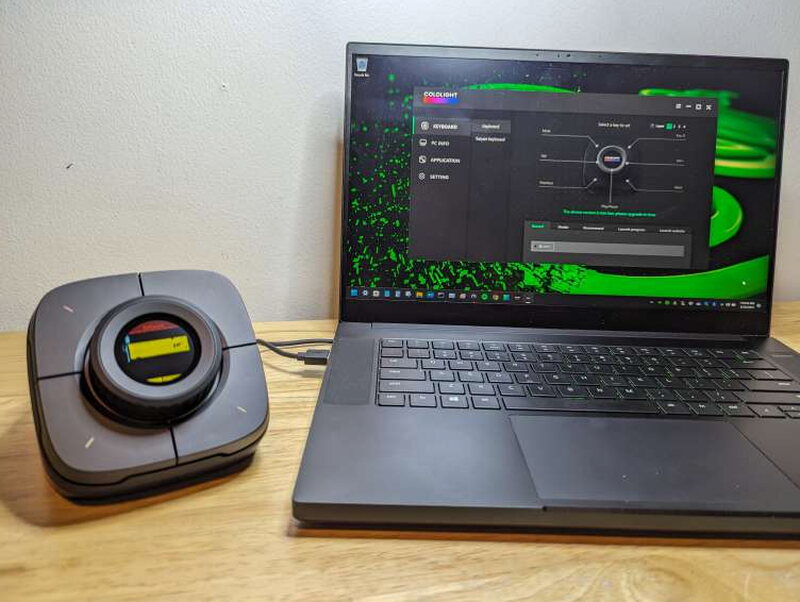
With the initial setup done, it’s time to grab the Colo Play desktop app. Available for Mac or PC, it unlocks some integration, like using the unit to power on your PC through Wake-on-Lan or showing info such as CPU usage.
Living With It
The Colo Play packs a range of functions of varying usefulness. One I couldn’t test is the Colo Controller, which lets the Colo Play run other Cololight products.
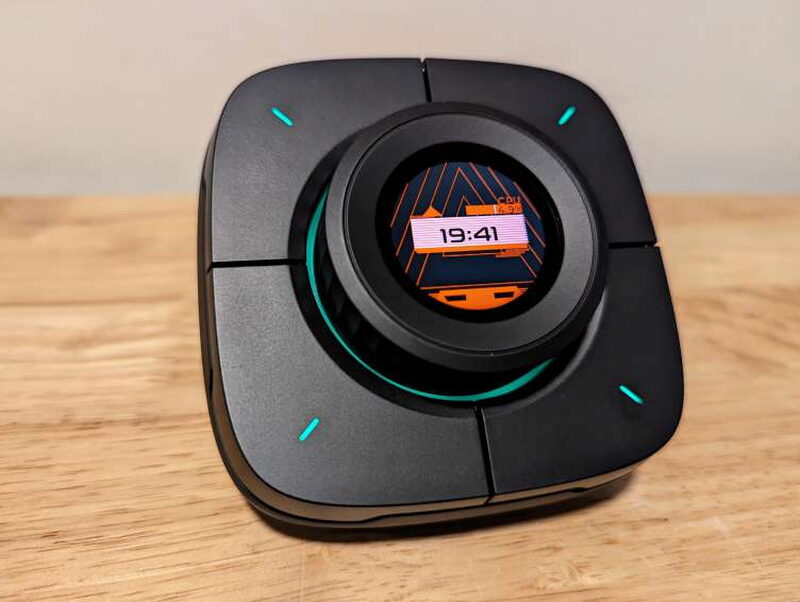
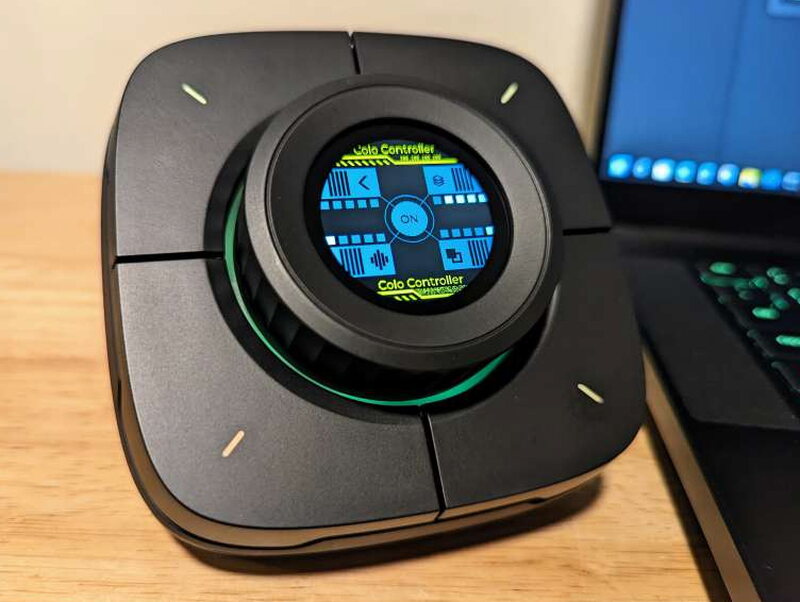
At its most basic, the Colo Play works best for me as a simple clock and volume knob.
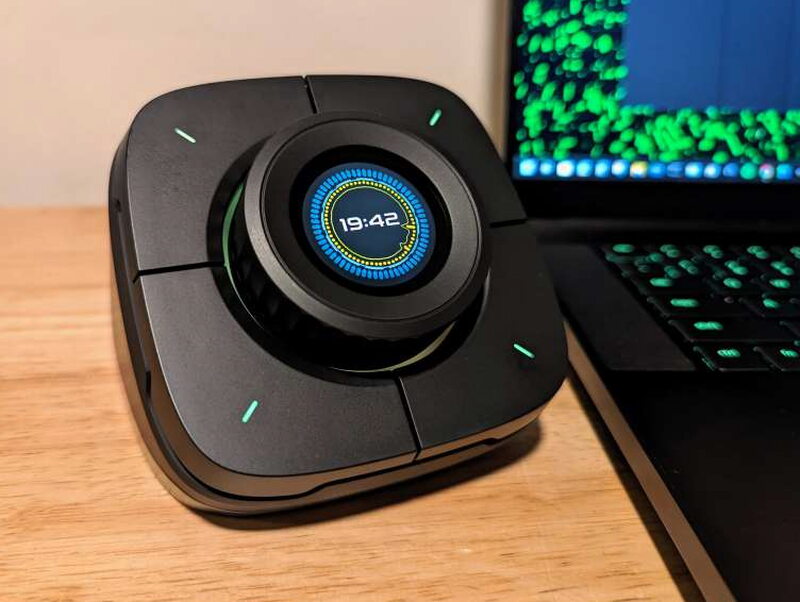
Holding down the upper left button pulls up the Colo Play’s settings, where you can flip between installed “apps,” adjust brightness, or jump to a different WiFi point. You can also handle most of those changes, plus program the buttons, through the desktop app, which is a bit easier to work with.
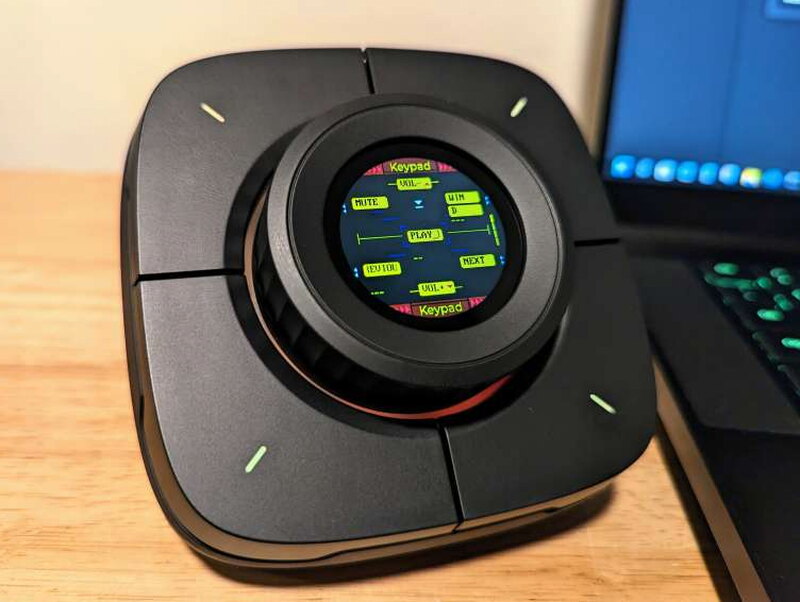
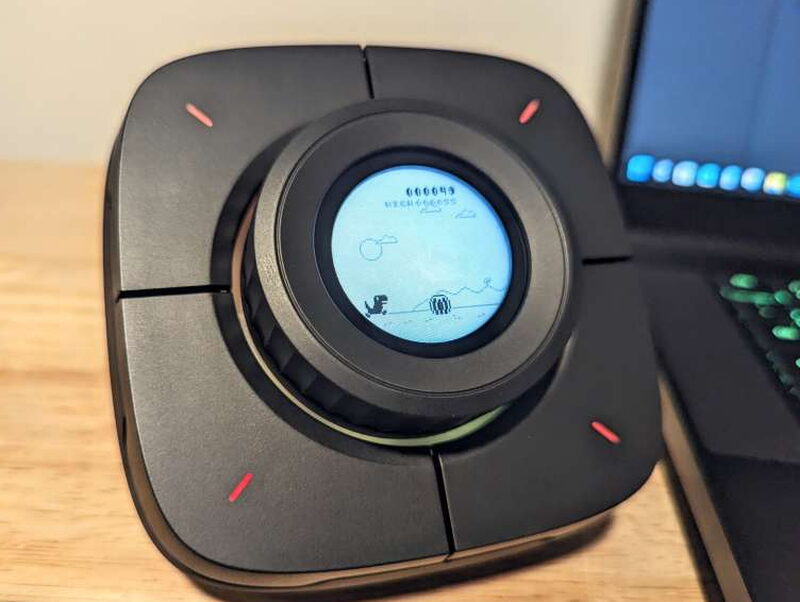
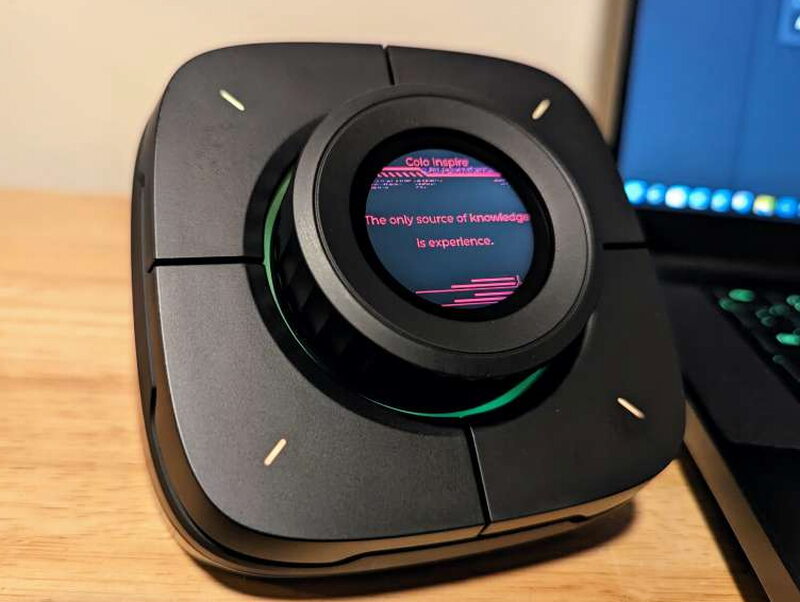
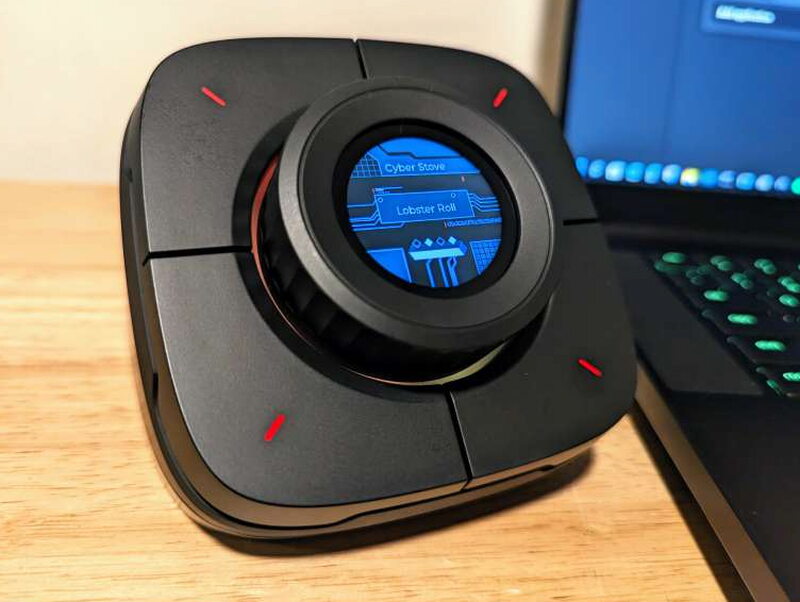
Other features, like showing a given channel’s YouTube follower count or reporting CPU stats for a connected PC, hover right on the edge of useful but don’t do anything for the way I use it.
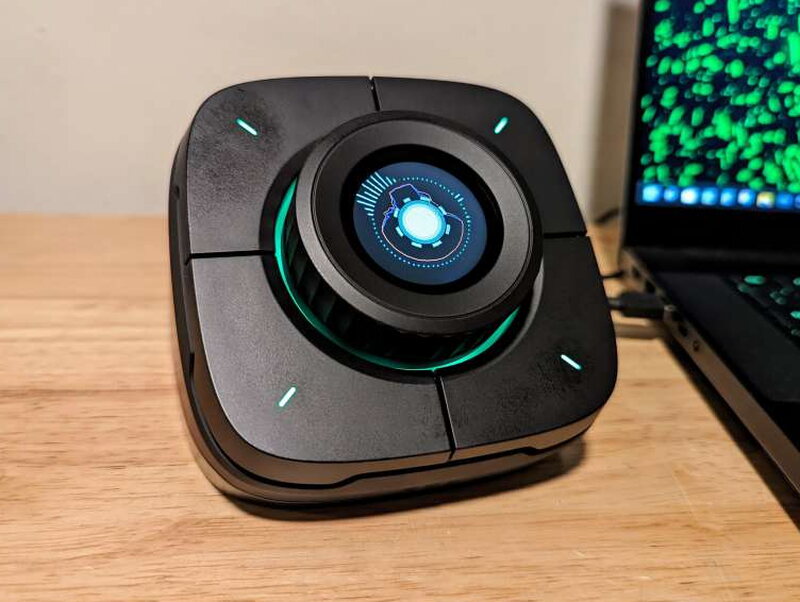
On the whole, the Colo Play is a bit of a question mark for me. Some features are interesting, but a handful, like the Cyber Stove, are genuine head-scratchers. I love having it on my desk, yet I rarely actually use it for much beyond the odd volume tweak.
The Good
- Works well as a simple volume and media controller
- Looks great on a desktop
The Not So Good
- Instructions unclear and difficult to understand
- Majority of apps aren’t very useful
- Large and bulky for the amount of features it has
Quick Questions
Q: Does the Cololight Colo Play work fully with Mac computers?
A: Not entirely. Some features, like computer performance monitoring, aren’t available on Mac, only PC.
Q: Does it need to be connected to a computer to function?
A: No, it can connect to WiFi on its own to get updates and new apps without a PC connection.
Q: Are the instructions easy to follow?
A: No, that’s a real weak point in this review. The instructions are described as unclear and difficult to understand.
Q: What’s the biggest use case in daily use?
A: Mostly as a simple clock and volume/media controller, even though it has many more built-in apps of varying usefulness.
The Verdict
As an accessory, the Cololight Colo Play Desktop Controller looks the part and fits right in with the rest of my fancy desk gear. What it actually does is another matter, because this is form over function all the way. The instructions are a pain to follow even for someone as tech-savvy as I am, and a lot of the functions are nearly pointless. I like the buttons and the dial, and I’ll never say no to an extra screen on my desk, but for its size and price I expected more. At $111.99 the Colo Play isn’t cheap, though it lines up with comparable controllers on price. If you’re into good-looking, RGB-lit peripherals, the Colo Play Desktop Controller might be worth a shot.
Price: $111.99
Product Link: Cololight
Source: The sample of this product was provided by Cololight.
RATING: 3 stars


