
REVIEW – I have been waiting on a home robot for a long time. Movies and TV promised us useful mechanical companions decades ago, from C-3PO and R2-D2 to Johnny 5, V.I.N.CENT, and Maria from Metropolis. The future arrived with plenty of smart speakers and phone apps, but not the desk robot I kept imagining. I even scaled the dream down to a simple robot arm like the one in the opening credits of Whiz Kids, which remains criminally underappreciated.
The ClicBot from KEYi Technology is the closest I have come to that robot pal. I tested the ClicBot Standard Robotics Kit, a $629.99 modular robotics set that can be rebuilt into many different forms. It can be delightful, clever, and surprisingly expressive. It can also be confusing, expensive, and occasionally frustrating. For the right adult, patient kid, or robotics household, there is a lot of fun hiding inside the box.
What ClicBot Is
ClicBot is a programmable robot kit built from snap-together modules. The Standard Kit combines a Brain, motorized Joints, Wheels, Skeleton parts, a Grasper, a Holder, and a Mount, then lets you program the finished build with motion recording or Google’s Blockly drag-and-drop interface in the ClicBot app. KEYi sells several kits with different module counts, and individual modules are available separately. The company recommends ClicBot for ages eight and up, but I would not hand the first setup to a child without an adult nearby.

The Standard Kit arrives in a plain brown outer box covered in robot-part illustrations. Inside that is the brighter retail box, which shows the kit, the modules, and the main specifications.

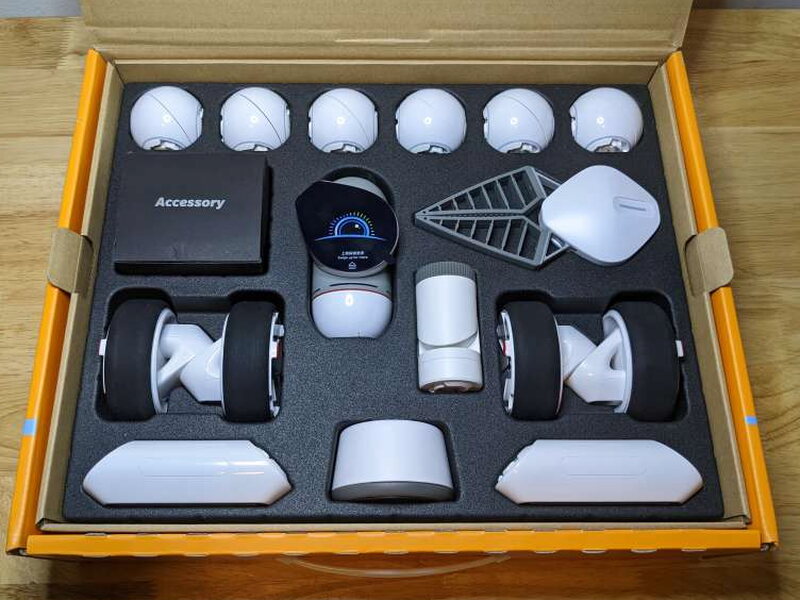
KEYi made the retail packaging useful after unboxing. The box works as a storage case, with a place for each module and accessory.
What Comes in the Standard Kit
The reviewed Standard Kit includes the core pieces needed for the Bac and Bic personality bots plus a good assortment of parts for custom builds.
- ClicBot Brain
- 6 Joints
- 2 Skeletons
- 1 Mount with extra base
- 4 Wheels
- 4 Lockers
- 1 Holder
- 1 Grasper
- 9 Sticker pads
- 1 USB-C Charging cable
- User Manual

Brain Module Specs
The Brain is the center of the ClicBot system. It contains the processor, battery, touchscreen, camera, sensors, speaker, WiFi, and the connectors that wake up the other modules.
- Processor: ARM-A7
- Wifi: 2.4G
- Dimensions: 2.62 in. L x 2.62 in. W x 5 in. H
- Net Weight: 9.03 oz
- Size of Touch Screen: 2.1 in.
- Rotation Range: -24° to +24°
- Camera:
- 2-megapixel Resolution
- Face Detection & Recognition
- Motion Detection (Identification Distance <16.4 ft)
- Gesture Sensors: 8 Gestures (Identification Distance <7.87 in.)
- Touch Sensors: Top, left, and right sides of casing
- Microphone: Volume detection
- Type of Charging: USB-C, 5V 2A charger recommended
- Battery Type: Rechargeable Polymer Lithium Battery
- Battery Capacity: 1550 mAh
- Run Time: Depends on robot size
- Bac mode: 2.5 hours
- Charge Time: 2-3 hours
- ClicBot App: Apple iOS (10 and above) and Android (5.0 and above)
Hardware and Module Design
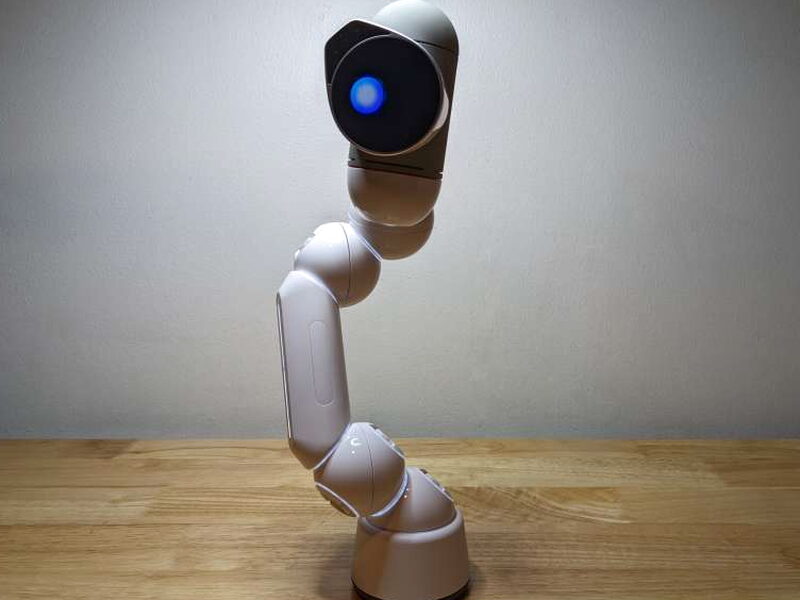
The hardware is the best part of ClicBot. The modules feel sturdy, the connectors are clever, and the system makes it possible to move from a small desktop character to rolling vehicles and arm-like builds without tools. The engineering feels far more polished than the software around it.
The capsule-shaped Brain carries the ARM-A7 processor, 1550mAh rechargeable lithium battery, accelerometer, gyroscope, microphone, speaker, and WiFi module. A power indicator LED changes from green at full power to orange when low and red when empty.

The 2.1 in. screen doubles as ClicBot’s eye. It surrounds a 2mp camera with facial recognition, motion sensing, and gesture sensing. The eye can swivel about 24° left or right, and that small movement gives the robot much of its charm.

Touch sensors sit on the top and sides of the Brain. The back panel has the power button and USB-C charging port.

Only a USB-A to USB-C cable is included. At $629.99, I expected KEYi to include a wall charger and a longer cable.

The speaker is on the underside of the Brain near one of its two module connectors.

Each connector uses three contact points plus interlocking tabs. Because the Brain provides the power and control, other modules do nothing until they are connected back to it through this system.

The spherical Joints are the main motion pieces. Each one has an internal motor that rotates on a single axis, and the embedded LEDs show connection and update status.

Every Joint has four connectors, so one Joint can become the center of several different robot shapes.

The connections are strong once snapped together. That strength is reassuring during play, but the manual should do a better job explaining how to separate modules. My first instinct was that pulling harder would break something, and I wasted about twenty minutes searching before simply using more force.

The four Locker tabs add extra security when you want two modules to stay together during movement.

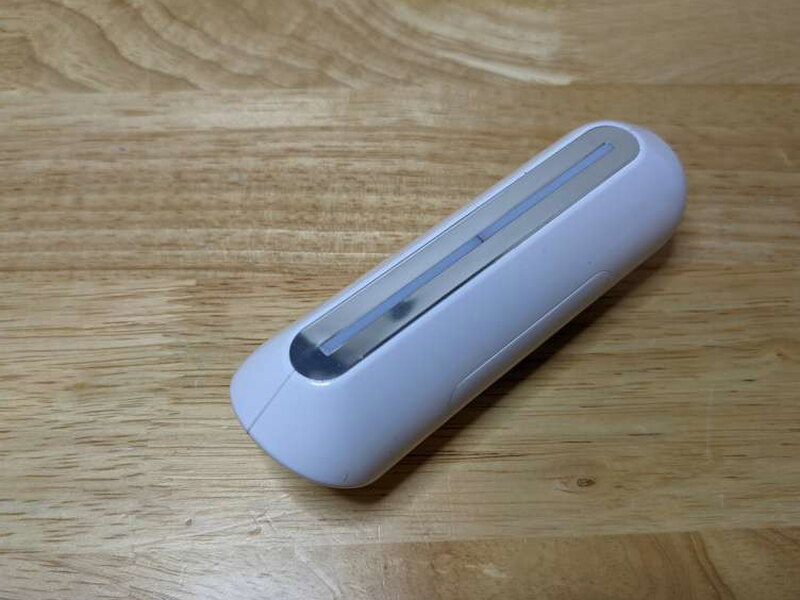
The long Skeleton pieces are mainly used as limbs or structural extensions.

Each Skeleton has connectors at both ends and a customizable LED strip along the top.
The Grasper has its own microprocessor and is designed to pick up objects in different shapes and sizes.

The rubber pincers are soft enough for safe handling and flexible enough to conform around the object being grabbed.

The Wheel modules are used for vehicle builds. Each one has a DC geared motor, a speed sensor, rubber tread, and a top rotor speed of 4.5 rounds-per-second.

The Holder is a passive adjustable mount. It can grip a cellphone or sports camera using a standard 1/4 screw.

The Mount lets a ClicBot build attach to a surface with the included adhesive mount stickers.

To assemble the Mount, a plastic sleeve slides over a Joint that has been joined with the two halves of the Mount.

The gray base then screws on, clamping the Mount and Joint together. The adhesive pads are strong enough to keep builds like Bac from tipping over.

The pads remove like Command strips. Pulling the rubbery tab stretches the adhesive until it releases cleanly from the surface.

Setup and First Update
Out of the box, ClicBot needs charging and updating. The Brain arrived with some charge, but the manual recommends filling the battery with the included USB-C cable before getting started.
During charging, you install the ClicBot app and create an account. After that, the Brain walks through its first update. The process means pairing the Brain with the app over WiFi, connecting the modules, downloading the update, and letting the Brain update each connected module. Once everything is current, you take the robot apart and use the Bac tutorial as the first guided build.

App Experience and Programming
ClicBot’s performance depends heavily on the user’s expectations. The hardware invites exploration, but the app and documentation make the early learning curve steeper than it should be. Even as a tech-savvy adult, I was irritated during the first few sessions.
The biggest problems were the cluttered app and the gap between the Python marketing language and the actual coding experience. I could not program directly in Python or from a PC. All coding happened inside the mobile app through motion recording or Blockly.
The app opens with a heavy focus on community videos, tutorials, and shared bot designs. Community projects are useful later, but they were distracting before I understood how to build or program anything.

The tutorial setup also creates an odd problem. If the videos are only in the app, it is hard to watch instructions while using that same app to build and program the robot.

After entering the modules from your kit, the Playground section can show which prebuilt bots you can make. The Standard Kit is an intermediate kit, but I still ran into plenty of featured builds that required parts I did not have.

Bac, Bic, and the Built-In Personalities
Bac and Bic are the two personality bots every ClicBot kit can build. I started with Bac because its videos were what originally drew me to ClicBot. Bac is a mounted, snake-like desk bot with a lot of expression.

The guided build worked well. The app and Brain screen show the assembly in 3D, and modules that still need attention blink their LEDs and appear red in the app. I had Bac assembled and running in about five minutes. The animation is genuinely fun, although Bac’s included games never worked reliably for me.
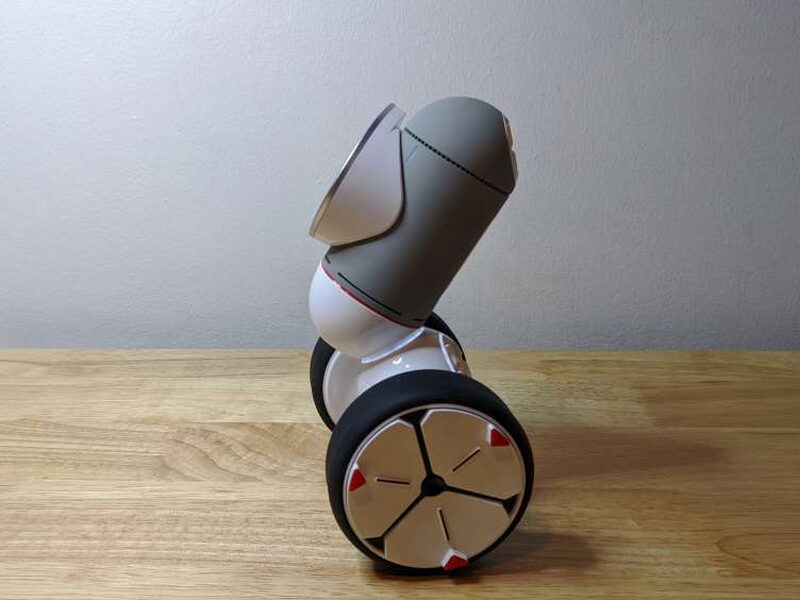
Bic came next. It balances on two wheels and rolls around with a lot of charm, but the novelty faded once the animations started repeating.

My larger complaint is that Bac and Bic are the only bots with built-in personalities. Other featured builds, and most custom ones, behave more like remote-controlled toys until you invest serious time in programming.
ClicBot programming is handled through recorded motions or Blockly. Motion recording is the easier starting point. You pose the robot, save that position, move it again, save another position, and then chain those positions into movements or macros. It works, but it felt tedious and awkward on my Pixel 5 screen.
Blockly was more interesting. It gives access to many module functions, including facial expressions on the Brain screen and LED colors on the Skeletons, but the phone interface still felt cramped.

The app can display the Python equivalent of a Blockly program, but I could not find a way to edit that Python directly.


More Builds From the Standard Kit
Once I became more comfortable with Blockly, I built as many robots as the Standard Kit would allow before moving on to my own design.
Little Tricycle was the first post-Bac and Bic build. It was fun to drive and useful for experimenting with simple macros.

The Engineering Vehicle was enjoyable to assemble, but steering it was tricky and the Grasper was not as nimble as I hoped.

The Little Four Wheel Rover was essentially a very expensive remote-controlled car with an animated eye.
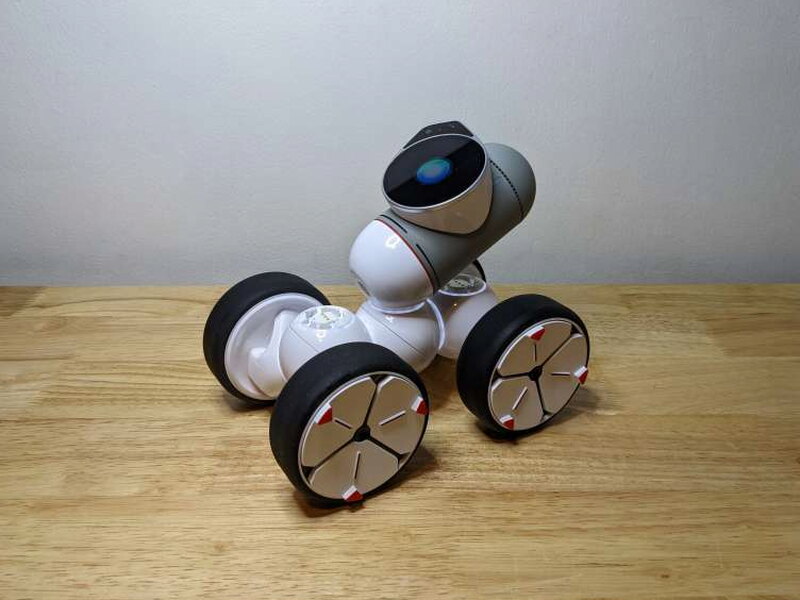
Little Grasper came close to my childhood robot-arm fantasy, but not quite close enough.

Big Grasper finally delivered the desktop robot arm feeling I wanted.

My custom build was Scorpio. It had no practical purpose beyond using every module in the Standard Kit and looking cool, but that was enough reason to make it.

I had a great time building and testing these forms around the apartment, although the moving robots were not welcomed by every member of the household.

After all that, my feelings settled into a clear split. ClicBot’s modular hardware is brilliant, sturdy, and creative. The software, documentation, openness, and pricing are where the experience falls short. Direct computer programming and true Python editing would make the kit far more appealing, especially at this price.

The Good
- The modular design supports simple builds first and more complex builds as skills improve
- The hardware mostly works right out of the box after charging and updates
- The system is expandable with additional modules
- Blockly gives access to a deep set of movement and behavior options
The Not So Good
- The app is crowded, confusing, and hard to learn at first
- Programming is limited to the app through motion recording or Blockly
- Python code can be viewed but not directly edited
- The manual should clearly explain how to separate modules
- The kit and add-on modules are very expensive
Quick Questions
Q: Can you program it directly in Python on a computer?
A: No, all programming happens in the mobile app through motion recording or the Blockly drag-and-drop interface; the app can display generated Python code but not let you edit it directly.
Q: Does every build have a personality like Bac and Bic?
A: No, Bac and Bic are the only builds with built-in personalities; other builds behave more like remote-controlled toys until you program them yourself.
Q: Does the kit include a wall charger?
A: No, only a USB-A to USB-C cable is included.
Q: What age range is it recommended for?
A: KEYi recommends age eight and up, though the review suggests an adult stay nearby for the first setup.
Final Verdict
The ClicBot Standard Robotics Kit leaves me impressed and conflicted. The modules are clever, the builds are fun, and the best moments really do feel like playing with the kind of robot companion I always wanted. At the same time, my Brain’s touch sensors only responded intermittently, the app made too many things harder than necessary, and direct Python or PC programming is missing. For $629.99, I expect a more polished overall experience.
If you have the budget, enjoy robotics, do not mind Blockly, and have the patience to work through the app, ClicBot can be a creative and rewarding kit. It may spark a kid’s interest in programming, or it may delight an adult who has been waiting far too long for a robot sidekick. Just know that the price is high, the software is not as friendly as the hardware, and the best experience requires persistence.
Price: $629.99
Product Link: KEYi Technology
Source: The sample of this product was provided by KEYi Technology.


