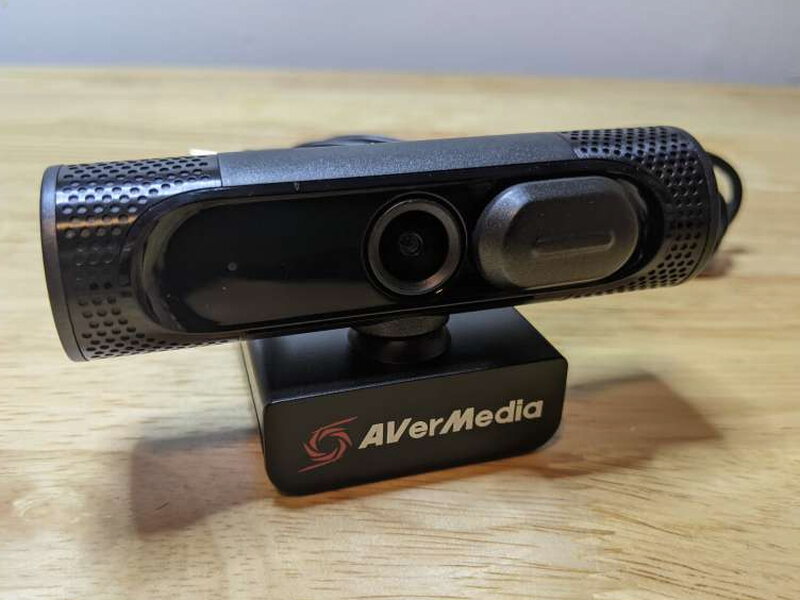
REVIEW – A year of working from home finally pushed me to fix the weakest part of my daily meeting setup: the webcam. I had been using the internal camera on my laptop for call after call, and the results were about what you would expect from a built-in laptop camera. The AVerMedia PW315 1080p Wide Angle Webcam solved a lot of that problem. It gives me a much better picture, a very wide view, and some useful software tricks, but at $119.99 it is not the obvious bargain that some competing webcams are.
Why I Needed It
The PW315 is a wide-angle external webcam built for video meetings, streaming, and recording. Its headline numbers are 1920 x 1080 video at up to 60 fps and a 95 degree field of view. On paper, that puts it well ahead of the camera in my 2017 Razer Blade Pro 17 and makes it a much better fit for a home office or small conference room.
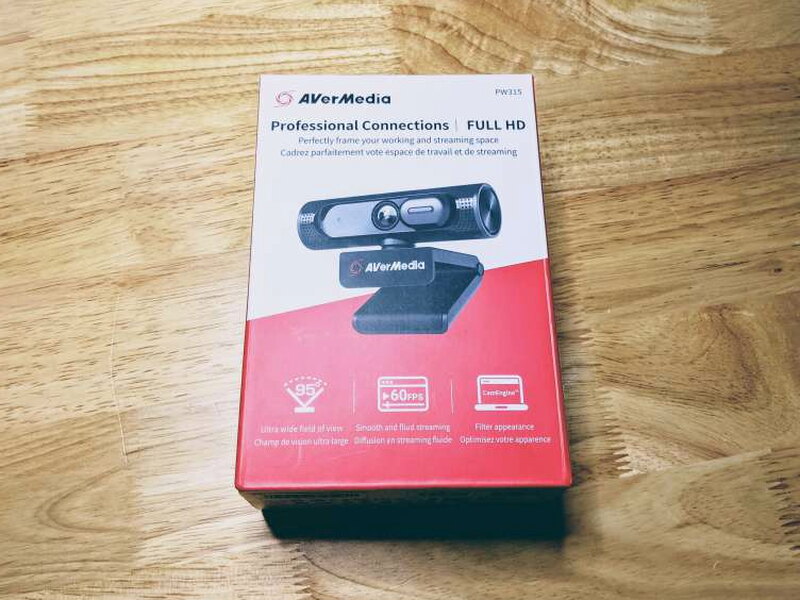
AVerMedia ships the webcam in a sturdy box with the key features printed clearly on the outside. The packaging feels protective rather than flashy, which is fine for a device that will spend its life clipped to a monitor.
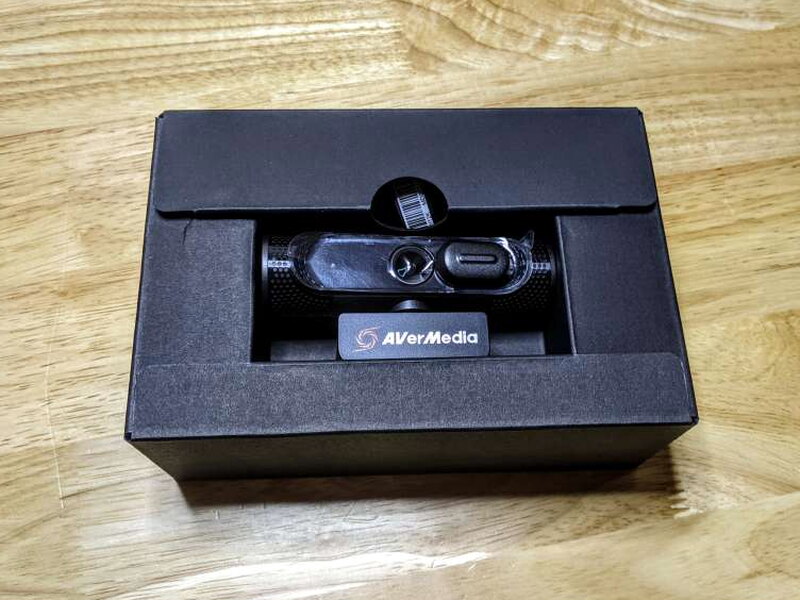
In the Box
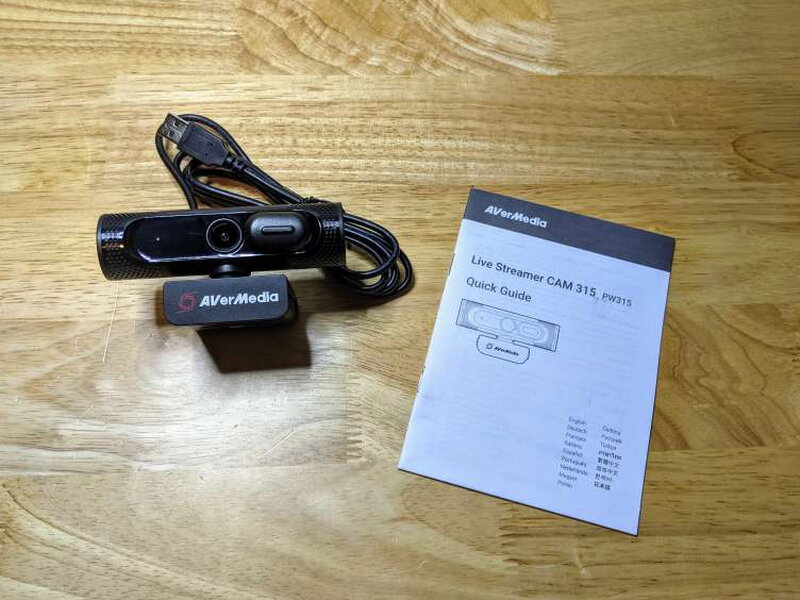
- AVerMedia PW315 webcam
- Quickstart Guide
Specifications
- Model Name: PW315
- Image Sensor: 2MP CMOS image sensor
- Maximum Resolution and Frame Rate: 1920 x 1080 at 60fps
- FoV: 95.8 degrees diagonal, 88.4 degrees horizontal, 57.6 degrees vertical
- Focus Method: Fixed Focus
- Format: MJPEG, YUY2
- Microphone: Dual Omnidirectional Stereo
- Microphone Coverage: 3m or 9.8ft
- Privacy Shutter: Yes
- Mounting: Swivel Monitor Clip, 1/4 inch Thread Tripod support
- USB Cable: Corded USB Type-A Cable 1.5m or 4.92ft
- Supported System: Windows, macOS, Chrome OS
- Dimensions: 95 x 53.6 x 45.8 mm or 3.7 x 2.1 x 1.8 in.
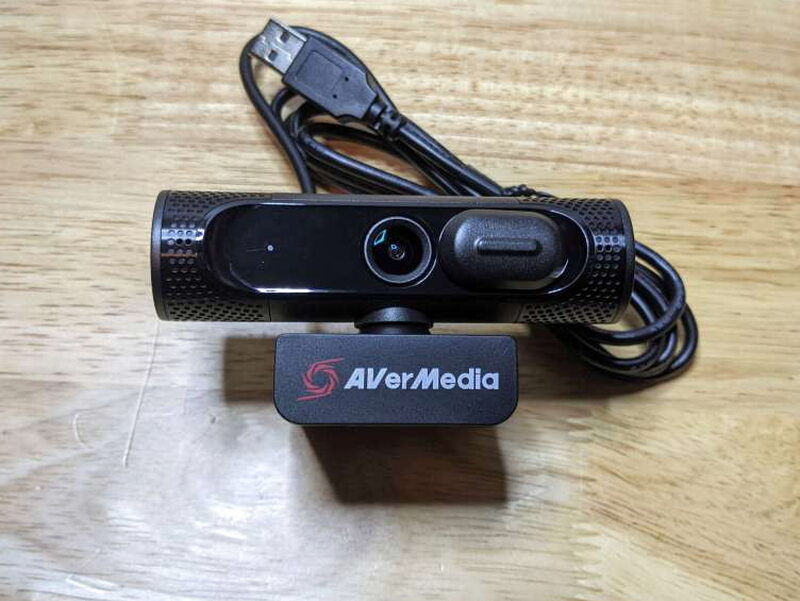
Hardware and Mounting
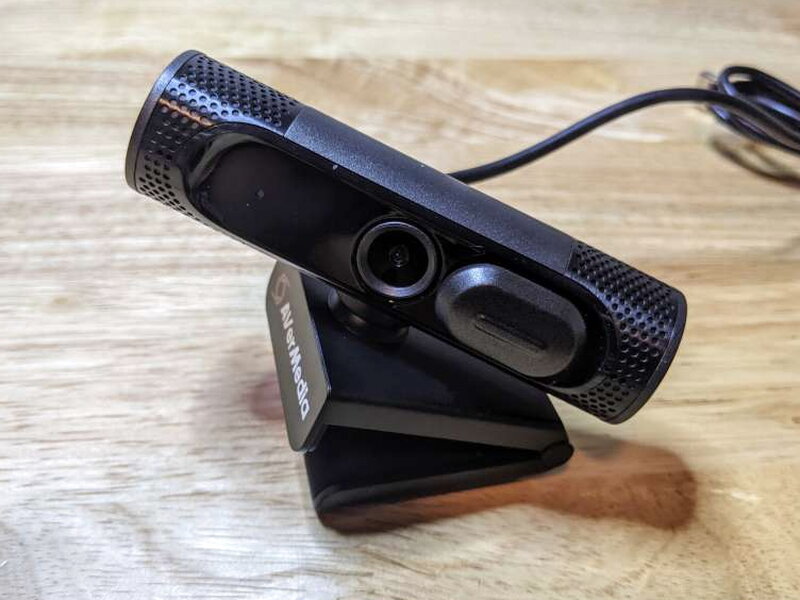
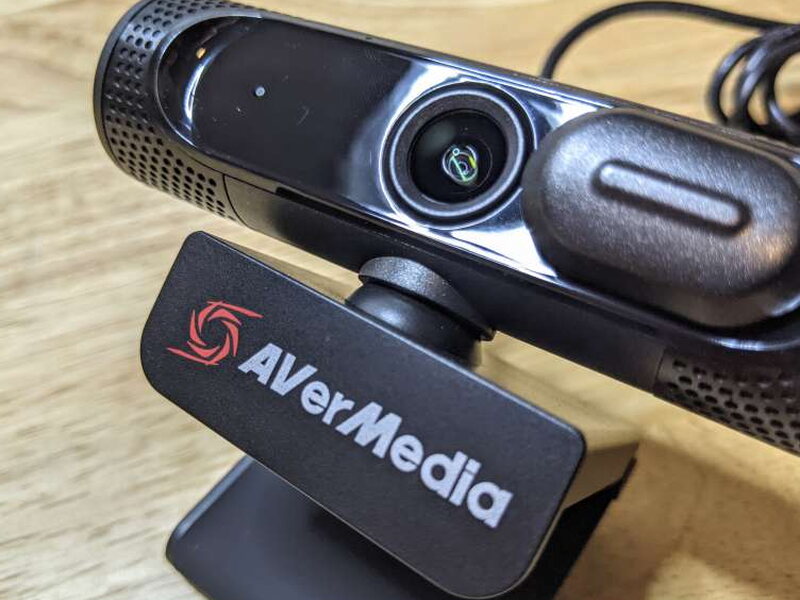
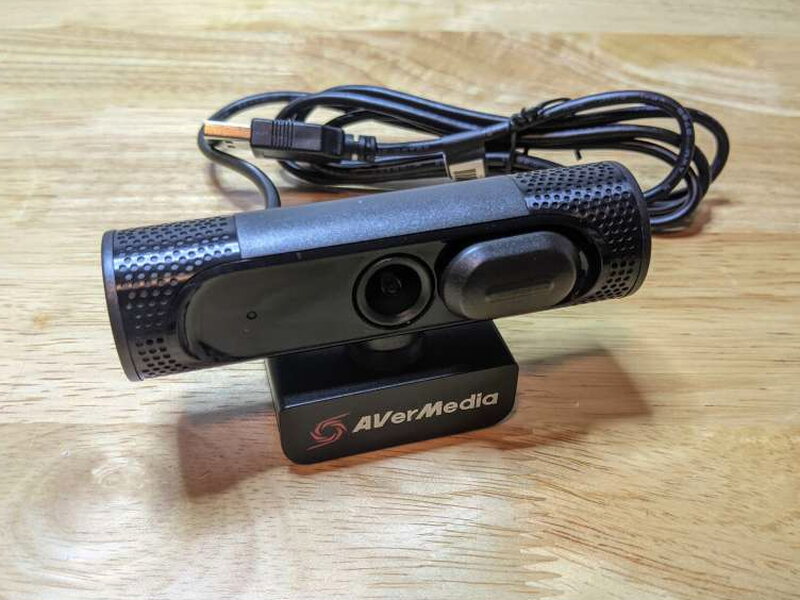
The PW315 looks more polished than a basic office webcam. AVerMedia uses glossy and matte black textured plastic, with patterned end caps and a large front logo. I still think the logo is too prominent, although a small piece of tape would hide it easily enough.
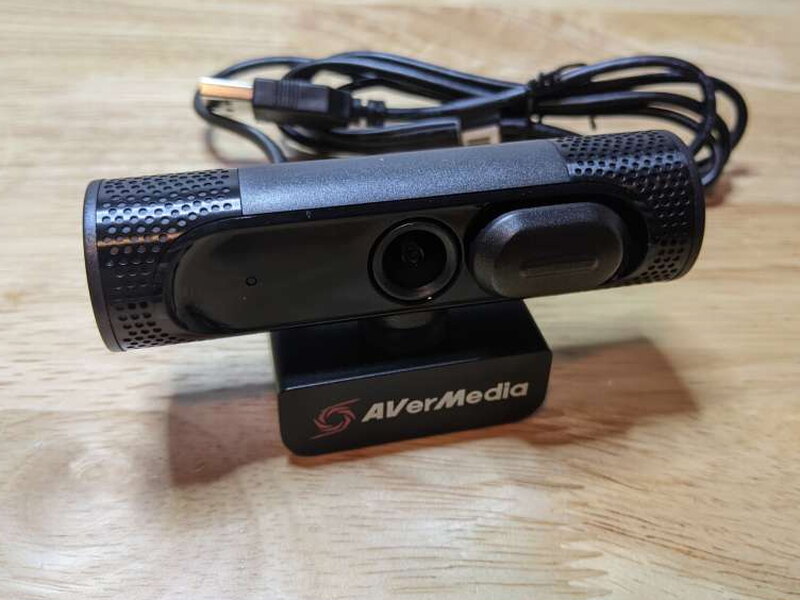
The sliding privacy shield is one of the best physical touches. It moves across the lens with a firm click, so covering the camera when it is not in use becomes an easy habit.
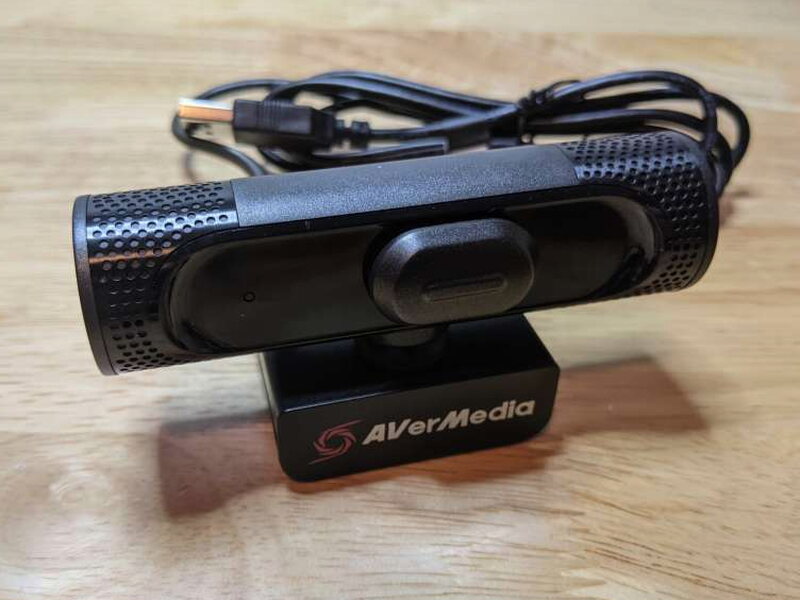
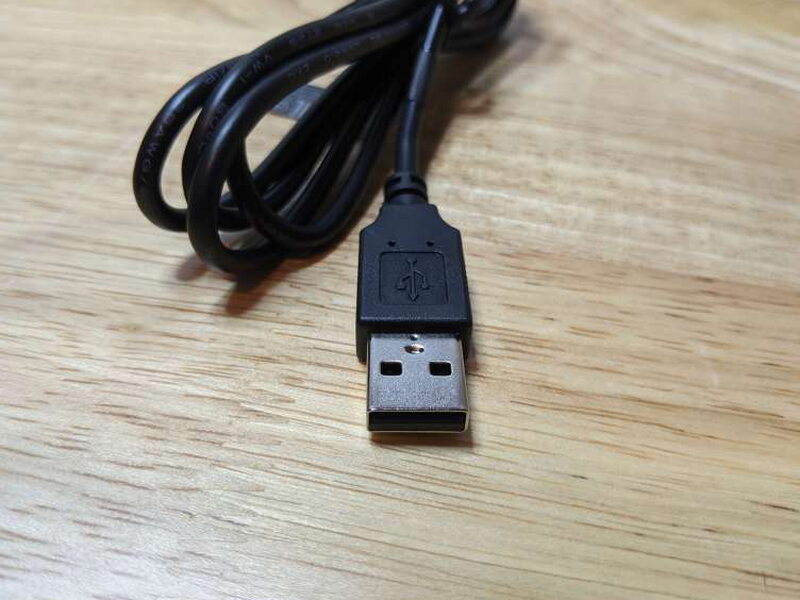
The cable is permanently attached at the rear of the PW315. I would always rather have a replaceable cable, but the included 1.5m USB Type-A lead is long enough for a typical laptop, desktop, or monitor setup.
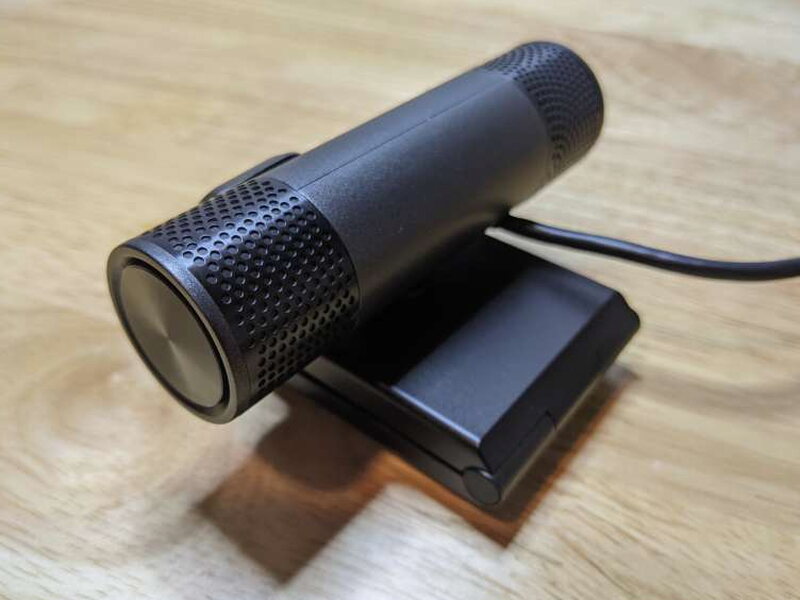
Because the cable is hard-wired, there is nothing to connect on the camera side. You simply plug the USB-A connector into the computer and choose the PW315 in your video app.
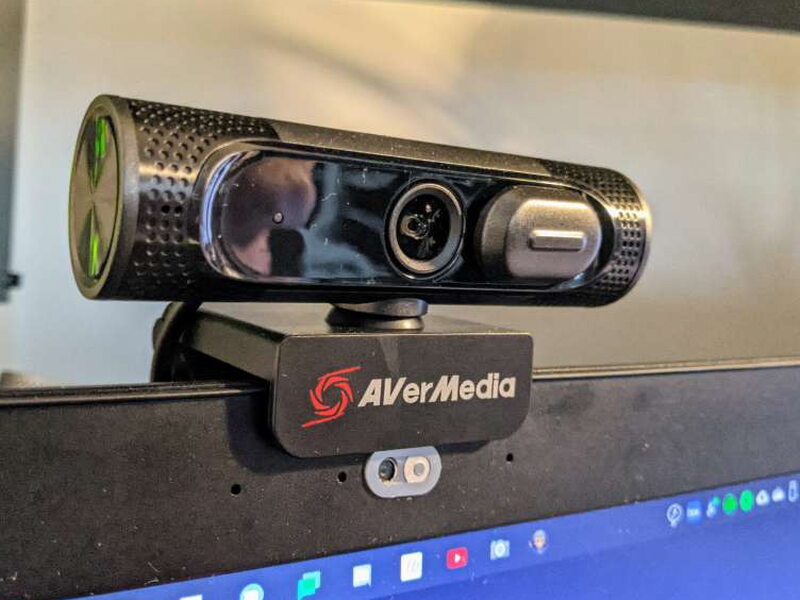
The built-in clamp is straightforward and stable. I tried it on three monitors and both of my laptops, and the webcam stayed planted without wobbling around during normal use.
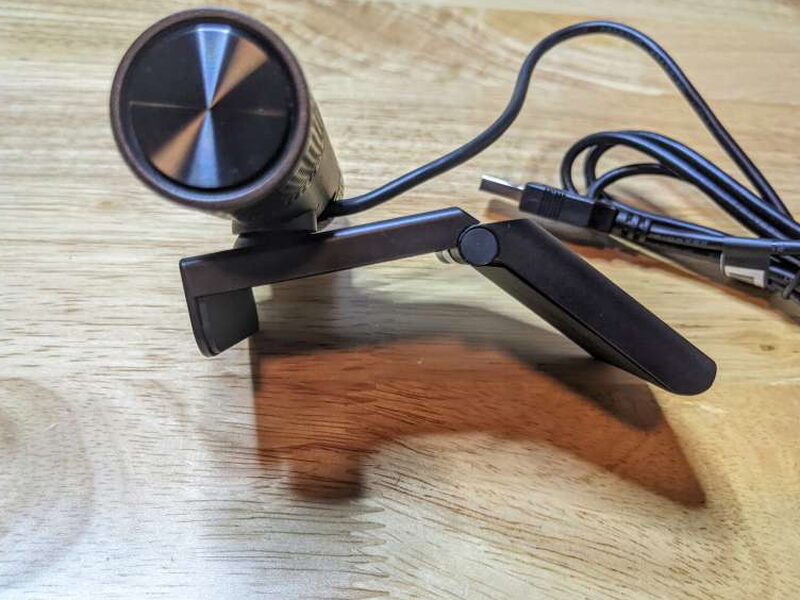
Once the clip is in place, the camera can rotate a full 360 degrees on its mount. That makes it easy to aim the lens without moving the whole computer or display.
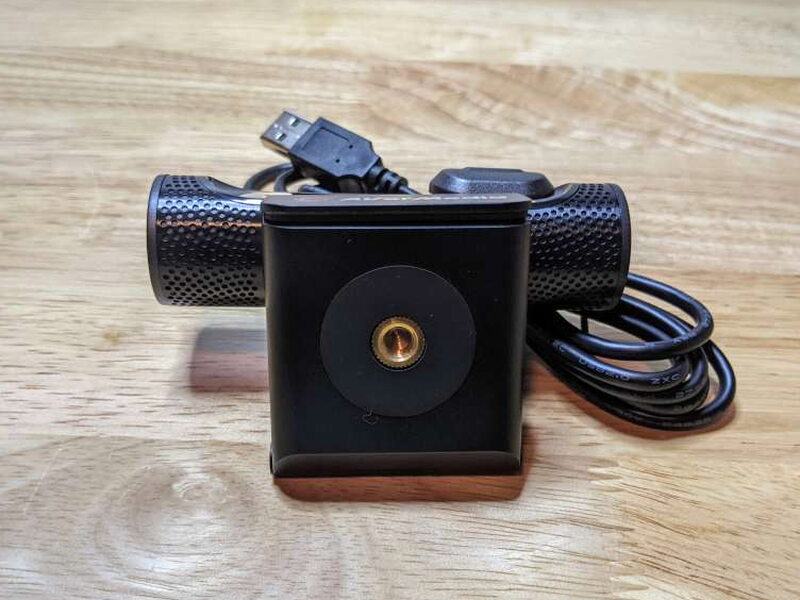
AVerMedia also includes a 1/4 inch thread on the underside. I appreciate that choice because it lets the PW315 work with a tripod, arm, or other standard camera mount instead of being limited to the monitor clip.
The construction is still plastic, but the overall design feels well thought out. The stippled ends, glossy center section, textured top, privacy cover, and mounting options make it feel like more than a throwaway accessory.
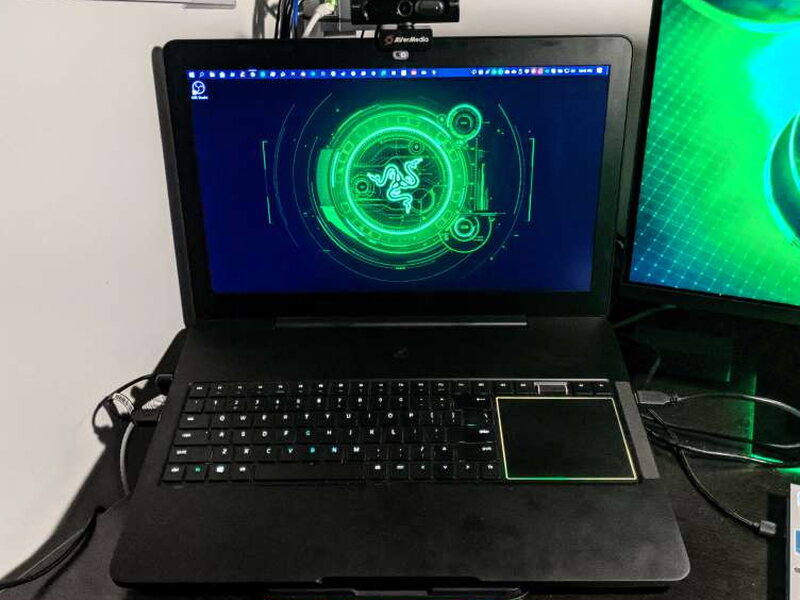
On top of my laptop, the PW315 looks professional and blends in with the rest of the setup, aside from that oversized front branding.
Setup and CamEngine
If you only want a basic webcam, setup is as simple as plugging it in and selecting the PW315 as the video source in your meeting, streaming, or recording app. It works that way without making you install anything first.
To use the extra features, you need AVerMedia CamEngine. I tested the Windows version on my Razer laptop, while macOS users get CamEngine Lite. The interface is clear enough, and the main controls cover brightness, contrast, hue, saturation, and sharpness. There are also deeper controls for gamma, exposure, gain, flicker, and backlight compensation.

The more interesting software tools live in the other CamEngine tabs. Face Effects add playful filter-style overlays, and AI Framing automatically adjusts the crop around the person moving or speaking. The ePTZ section also lets you digitally pan, tilt, and zoom, then save favorite crops and assign them to hotkeys.

AI Framing is the software feature I can actually see using, especially when more than one person is in view or when the PW315 is placed in a conference room. The Face Effects were much less convincing. They reminded me of filters from apps like Snapchat, but they did not track my face cleanly enough to be useful.
Unfortunately, CamEngine itself was not as reliable as I wanted. It crashed more than once, sometimes refused to open again until I rebooted the laptop, and occasionally vanished. I also lost time figuring out that, to bring the advanced CamEngine features into a video chat app, I had to choose CamEngine as the source instead of the PW315. That should have been stated plainly in the guide.
Performance
After several weeks with the PW315 as my main webcam, I did not run into any serious day-to-day problems. The default colors were usable, the picture held up well in different lighting, and the microphone audio did not give me anything to complain about. It is plainly better than the internal webcam I had been using.
To show that difference, I made a side-by-side comparison video with the AVerMedia PW315 and the internal webcam on my 2017 Razer Blade Pro 17.
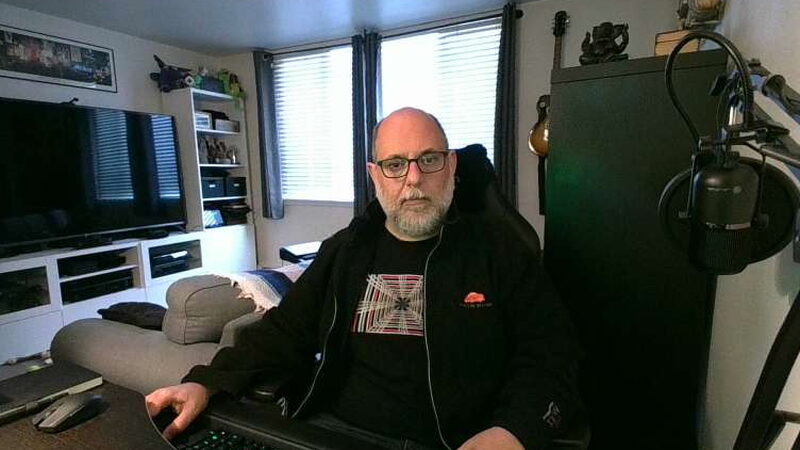
The video shows the PW315 recording 1080p at 60fps and looking much better than the laptop camera. I also saved still shots from both cameras for comparison.

The laptop webcam still is first, and the AVerMedia PW315 still is next. The PW315 wins the video comparison easily, but its snapshot quality did not impress me as much as its live video.
I am happy to keep using the PW315 for video calls, streaming, and recording instead of my internal webcam. It is a real upgrade, even if the price and software issues keep it from being an automatic recommendation for everyone.
What Works
- Great field of view and decent image quality
- AI Auto Framing is a useful feature
- Easy setup
- Stable monitor clip and tripod mounting support
What Does Not
- CamEngine was buggy during testing
- Face Effects did not track well enough to be useful
- The price is higher than many comparable webcams
- The large front logo is not my favorite design choice
Quick Questions
Q: Does the webcam have a physical privacy cover?
A: Yes, a sliding privacy shield moves over the lens with a firm click.
Q: Was the CamEngine software reliable?
A: No, it crashed more than once during testing, sometimes refusing to reopen until a reboot.
Q: Can it mount on a tripod?
A: Yes, the underside of the clip includes a standard 1/4 inch tripod thread in addition to the monitor clip.
Q: What’s the maximum resolution and frame rate?
A: 1920×1080 at up to 60fps, with a 95-degree diagonal field of view.
Bottom Line
The AVerMedia PW315 is a solid, feature-rich webcam with good build quality, an easy plug-in setup, a 95 degree field of view, 1080p video at 60fps, AI Auto Framing, a privacy shutter, and tripod support. The CamEngine software adds value when it works, but my experience with crashes and confusion around the correct video source kept it from feeling polished. At $119.99, the PW315 can make sense if you want the wide view and framing tools, but shoppers who only need a simple webcam may find cheaper options that do enough. Check out all of our other webcam reviews.
Price: $119.99
You can also find it at eBay for $143.80 and Walmart for $187.99.
Source: The sample of this product was provided by AVerMedia.


